
Appendix A - CI failure examples
Use this appendix when a pull request check fails or when you want a visual example of what passing checks look like.
For the short author-facing overview, see Automated checks and review signals.
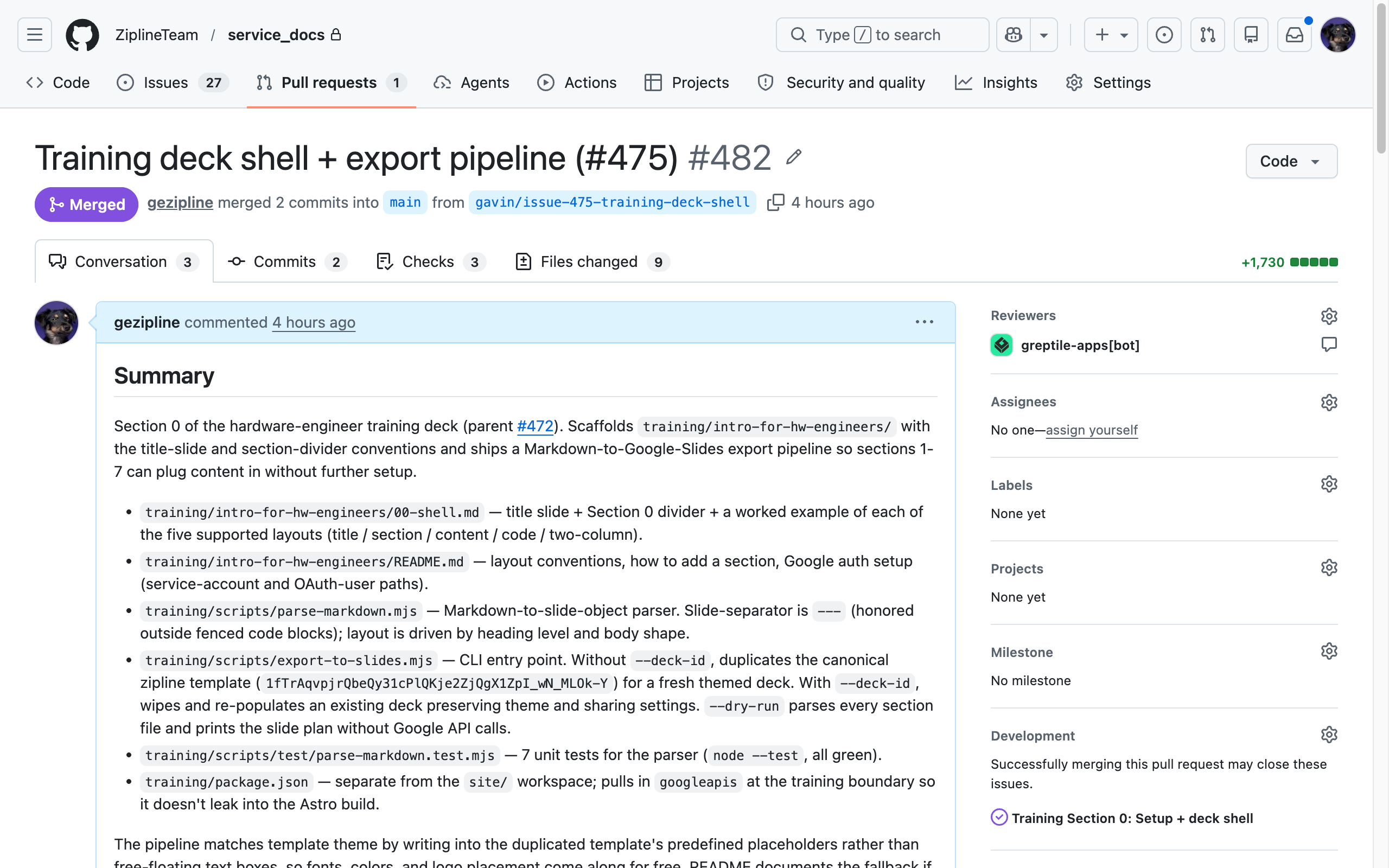
Reading a passing pull request
Section titled “Reading a passing pull request”The green bar at the bottom labeled All checks have passed is the signal you are looking for. Click it to expand the per-check list.
The Cloudflare Pages deployment is the preview URL. Use the branch preview to see your branch rendered as if it were live.
The automated reviewer, Greptile, may post inline comments. Treat its findings the way you would treat a careful first-pass reviewer: usually right, occasionally wrong, always worth a reply. Do not merge over open comments without addressing each one.
Passing pull request example
Finding your pull request
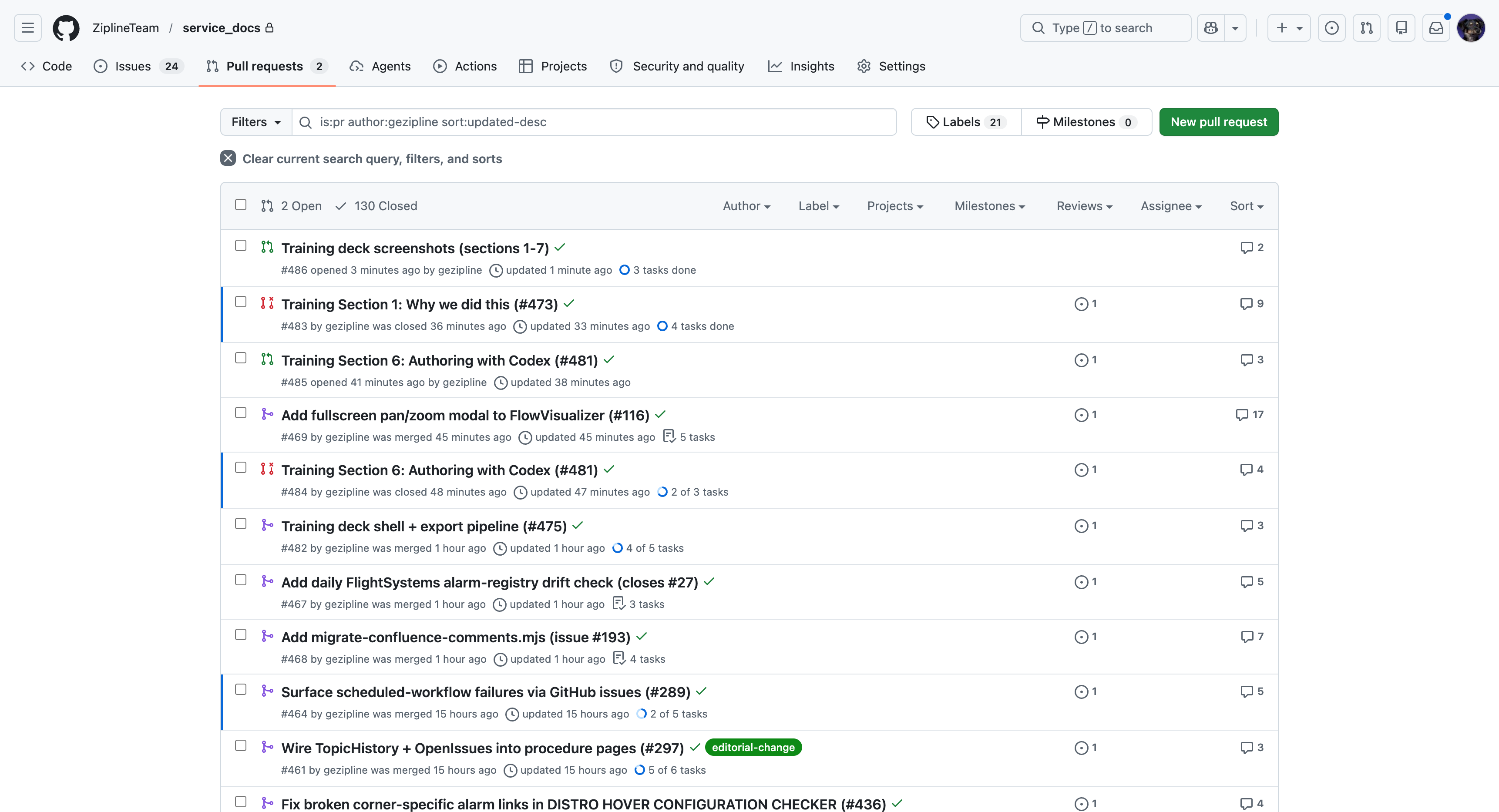
Section titled “Finding your pull request”Pull requests you have opened show up in your branch list and on the repository’s Pull requests tab.
- A green check next to the title means the checks passed.
- A red X means at least one check failed. Open the pull request to find out which.
- A grey dot means the checks are still running.
Pull request list example
Reading a failing pull request
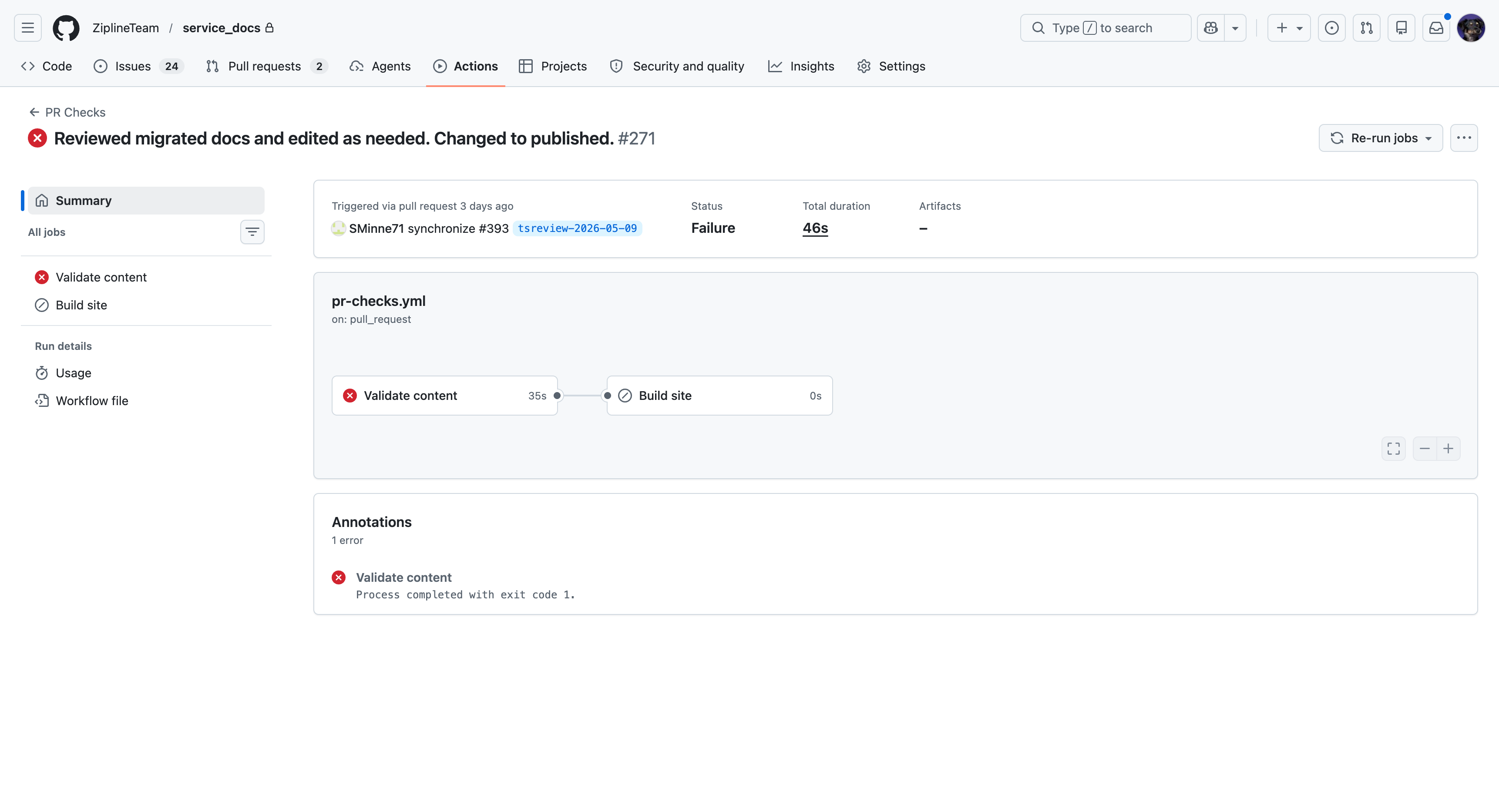
Section titled “Reading a failing pull request”The red X is the headline. The annotation is the bumper sticker. Neither tells you what was wrong; the useful detail is in the job log.
Click the failing job name, such as Validate content, to open the full log. The error you need is in the step that has its own red X inside the job.
Do not re-run the job hoping it was flaky. These validators are deterministic against the files in your branch. Fix the file, push again, and let the checks rerun.
Failing pull request overview example
Reading the failure log
Section titled “Reading the failure log”In the example below, the Validate content log has warnings in yellow and blocking errors in red, marked with ✗.
The blocking error might read:
✗ src/content/docs/topics/aircraft/camera-device-failure.mdx: Guide ownership field is not allowed: owner. Use Technical Contacts by System.The format is: file path, then the validator message. The field name, owner here, tells you exactly which field to fix. In this case, remove owner and any other retired ownership fields from the topic object, along with any Engineer Owner table or Owner line in the body. FSE and Engineering contacts belong on Technical Contacts by System; the FSE assignment for a new guide belongs on the PR.
Annotated failure log example
Warnings (1):
  ⚠ src/content/docs/topics/aircraft/camera-device-failure.mdx: topic.alarms[0] “CAMERA DEVICE FAILURE” contains spaces — should these be underscores?

Errors (1):
  ✗ src/content/docs/topics/aircraft/camera-device-failure.mdx: Guide ownership field is not allowed: owner. Use Technical Contacts by System.
- Warning: Check the alarm identifier against the technical source and correct its formatting.
- Blocking error: Remove the retired
ownerfield. Adding a different name or a team does not fix this error.
Other metadata and troubleshooting validations still apply. Fix the specific error rather than adding owner fields to satisfy an outdated example.
Warnings vs errors
Section titled “Warnings vs errors”Warnings are non-blocking, but they can still identify real authoring problems.
For example, warnings about alarm constants containing spaces or colons often mean the alarms[] value does not match a real alarm. That will not block the merge, but it can block readers from finding the topic by searching the alarm constant.
Treat warnings as work to understand before merge, not as noise to ignore.