
Site Network Outage
Applicable alarms (1)
Likely outcomes — click to expand
Based on 0 missions where this alarm fired in the last 90 days as of 2026-10-13
Aggregated from fleet operations and refreshed daily. Individual outcomes may vary by site and configuration.
Background
Section titled “Background”This guide fits into the larger Asset Offline Flow described here: Asset Offline Troubleshooting Landing Page. Before making edits to this page, please review the Landing Page and ensure that the steps here fit into the overall flow.
This guide covers specific troubleshooting steps to triage a site network outage and dock Ethernet connectivity issues, including NO_INTERNET_VIA_ETHERNET cases.
Definitions:
Section titled “Definitions:”- Point of Presence (POP): The bridge between the external internet and the Tower Area Networks. Where the equipment needed to connect users (or other networks) to its services. A PoP usually contains:
- Switches: to route traffic.
- Firewalls & Routers: for security and to route traffic.
- Transmission equipment: to connect to fiber backbones or metro networks.
- Surge Protectors: to protect us from lightning, and various power failures.
Troubleshooting Steps
Section titled “Troubleshooting Steps”graph TD
check-pop-vs-tower-connectivity["<small><b>Step 1</b></small><br/>Action: Check POP vs Towers by enabling Tails..."]
is-zabbix-dashboard-listed{"<small><b>Step 2</b></small><br/>Question: Is a Zabbix dashboard listed for the ..."}
does-site-have-active-internet-traffic{"<small><b>Step 3</b></small><br/>Question: Does the site have active internet tr..."}
escalate-it-then-check-dock["<small><b>Step 4</b></small><br/>Action: Escalate the existing incident to IT ..."]
check-noc-site-bandwidth{"<small><b>Step 5</b></small><br/>Question: Check the NOC dashboard for the affec..."}
site-working-confirm-port-status["<small><b>Step 6</b></small><br/>Action: The site has working Ethernet. Confir..."]
site-network-issue-escalate-assign-wo["<small><b>Step 7</b></small><br/>Action: The site may be experiencing a networ..."]
check-dock-ethernet-port-activity{"<small><b>Step 8</b></small><br/>Question: Determine whether at least one Ethern..."}
confirm-dock-daisy-chain{"<small><b>Step 9</b></small><br/>Question: Confirm whether the affected dock is ..."}
refer-to-network-diagram["<small><b>Step 10</b></small><br/>Action: Refer to the network diagram to assis..."]
confirm-adjacent-dock-port-2{"<small><b>Step 11</b></small><br/>Question: Does Port 2 of the adjacent dock that..."}
is-top-dock-daisy-chained{"<small><b>Step 12</b></small><br/>Question: Determine whether the issue is occurr..."}
check-port-2-bottom-dock{"<small><b>Step 13</b></small><br/>Question: What is the status reported by Port 2..."}
restart-network-config["<small><b>Step 14</b></small><br/>Action: Restart the dock's Network Config Ser..."]
did-restart-restore-ethernet{"<small><b>Step 15</b></small><br/>Question: Did restarting the network configurat..."}
link-status-down-assign-wo["<small><b>Step 16</b></small><br/>Action: This is likely caused by a physical c..."]
assign-ethernet-inspection-wo["<small><b>Step 17</b></small><br/>Action: Assign the following WO template: Wo..."]
inspect-ethernet-run-tower-base-to-cabinet{"<small><b>Step 18</b></small><br/>Question: Inspect the Ethernet run from the tow..."}
inspect-and-test-surge-protectors{"<small><b>Step 19</b></small><br/>Question: Inspect and test both surge protector..."}
test-external-ethernet-run{"<small><b>Step 20</b></small><br/>Question: Test the external Ethernet run. Use a..."}
test-internal-tower-ethernet-run{"<small><b>Step 21</b></small><br/>Question: Test the internal tower Ethernet run...."}
evaluate-final-result["<small><b>Step 22</b></small><br/>Action: Evaluate the final result. - If eithe..."]
return-asset-to-service["<small><b>Step 23</b></small><br/>Action: The issue has been found and resolved..."]
check-pop-vs-tower-connectivity --> is-zabbix-dashboard-listed
is-zabbix-dashboard-listed -->|Yes| does-site-have-active-internet-traffic
is-zabbix-dashboard-listed -->|No| check-noc-site-bandwidth
does-site-have-active-internet-traffic -->|Yes| check-dock-ethernet-port-activity
does-site-have-active-internet-traffic -->|No| escalate-it-then-check-dock
check-noc-site-bandwidth -->|Yes| site-working-confirm-port-status
check-noc-site-bandwidth -->|No| site-network-issue-escalate-assign-wo
site-working-confirm-port-status --> check-dock-ethernet-port-activity
check-dock-ethernet-port-activity -->|Yes| confirm-dock-daisy-chain
check-dock-ethernet-port-activity -->|No| assign-ethernet-inspection-wo
confirm-dock-daisy-chain -->|Yes| refer-to-network-diagram
confirm-dock-daisy-chain -->|No| is-top-dock-daisy-chained
refer-to-network-diagram --> confirm-adjacent-dock-port-2
confirm-adjacent-dock-port-2 -->|LINK_STATUS_UP| restart-network-config
confirm-adjacent-dock-port-2 -->|LINK_STATUS_DOWN| link-status-down-assign-wo
is-top-dock-daisy-chained -->|Yes| check-port-2-bottom-dock
is-top-dock-daisy-chained -->|No| assign-ethernet-inspection-wo
check-port-2-bottom-dock -->|LINK_STATUS_UP| restart-network-config
check-port-2-bottom-dock -->|LINK_STATUS_DOWN| link-status-down-assign-wo
restart-network-config --> did-restart-restore-ethernet
did-restart-restore-ethernet -->|Yes| return-asset-to-service
did-restart-restore-ethernet -->|No| assign-ethernet-inspection-wo
link-status-down-assign-wo --> assign-ethernet-inspection-wo
assign-ethernet-inspection-wo --> inspect-ethernet-run-tower-base-to-cabinet
inspect-ethernet-run-tower-base-to-cabinet -->|Yes| return-asset-to-service
inspect-ethernet-run-tower-base-to-cabinet -->|No| inspect-and-test-surge-protectors
inspect-and-test-surge-protectors -->|Yes| return-asset-to-service
inspect-and-test-surge-protectors -->|No| test-external-ethernet-run
test-external-ethernet-run -->|Yes| return-asset-to-service
test-external-ethernet-run -->|No| test-internal-tower-ethernet-run
test-internal-tower-ethernet-run -->|Yes| return-asset-to-service
test-internal-tower-ethernet-run -->|No| evaluate-final-result
style check-pop-vs-tower-connectivity fill:#dcfce7,stroke:#22c55e,color:#14532d
style is-zabbix-dashboard-listed fill:#dbeafe,stroke:#3b82f6,color:#1e3a5f
style does-site-have-active-internet-traffic fill:#dbeafe,stroke:#3b82f6,color:#1e3a5f
style escalate-it-then-check-dock fill:#dcfce7,stroke:#22c55e,color:#14532d
style check-noc-site-bandwidth fill:#dbeafe,stroke:#3b82f6,color:#1e3a5f
style site-working-confirm-port-status fill:#dcfce7,stroke:#22c55e,color:#14532d
style site-network-issue-escalate-assign-wo fill:#dcfce7,stroke:#22c55e,color:#14532d
style check-dock-ethernet-port-activity fill:#dbeafe,stroke:#3b82f6,color:#1e3a5f
style confirm-dock-daisy-chain fill:#dbeafe,stroke:#3b82f6,color:#1e3a5f
style refer-to-network-diagram fill:#dcfce7,stroke:#22c55e,color:#14532d
style confirm-adjacent-dock-port-2 fill:#dbeafe,stroke:#3b82f6,color:#1e3a5f
style is-top-dock-daisy-chained fill:#dbeafe,stroke:#3b82f6,color:#1e3a5f
style check-port-2-bottom-dock fill:#dbeafe,stroke:#3b82f6,color:#1e3a5f
style restart-network-config fill:#dcfce7,stroke:#22c55e,color:#14532d
style did-restart-restore-ethernet fill:#dbeafe,stroke:#3b82f6,color:#1e3a5f
style link-status-down-assign-wo fill:#dcfce7,stroke:#22c55e,color:#14532d
style assign-ethernet-inspection-wo fill:#dcfce7,stroke:#22c55e,color:#14532d
style inspect-ethernet-run-tower-base-to-cabinet fill:#dbeafe,stroke:#3b82f6,color:#1e3a5f
style inspect-and-test-surge-protectors fill:#dbeafe,stroke:#3b82f6,color:#1e3a5f
style test-external-ethernet-run fill:#dbeafe,stroke:#3b82f6,color:#1e3a5f
style test-internal-tower-ethernet-run fill:#dbeafe,stroke:#3b82f6,color:#1e3a5f
style evaluate-final-result fill:#dcfce7,stroke:#22c55e,color:#14532d
style return-asset-to-service fill:#dcfce7,stroke:#22c55e,color:#14532d Hover or focus a block to preview it. Select the block to keep the preview open.
Review:
- The WAN/Zipline Comms Server blocks at the top of the dashboard
- Download and upload speeds shown in gray
- Whether the Zipline Comms Server is reachable and shown in green
- Whether upload and download traffic is present
Example of healthy networking at the site level:
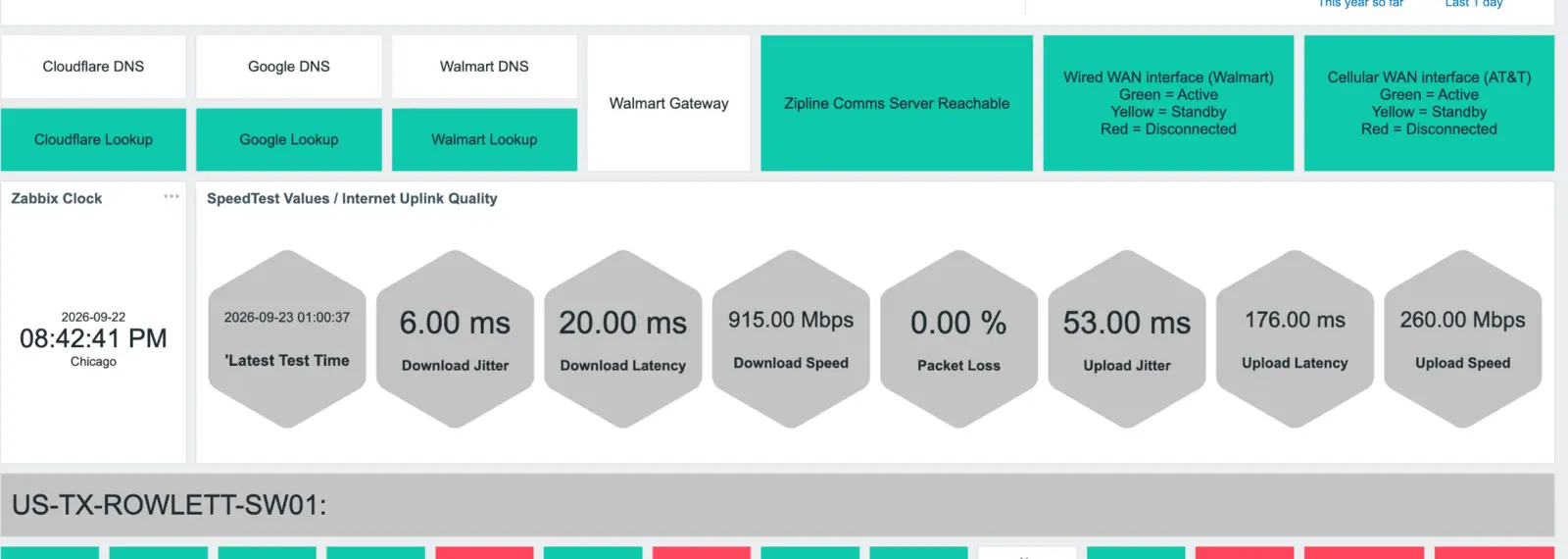
Is the site bandwidth above 50 Mbps?

Is at least one Ethernet port active and passing bytes?
Then determine whether the affected tower is part of a 12-dock structure, or
12DS.In Fleet Wrangler, review the tower number and the docks listed under it. If three docks are listed under a tower ID, such as
p2-tower-a, it is a 12-dock structure.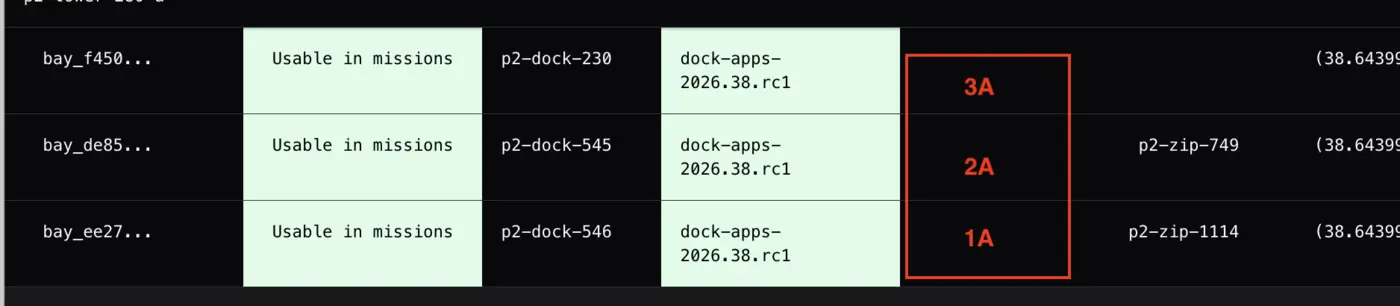
Is this a 12-dock structure?
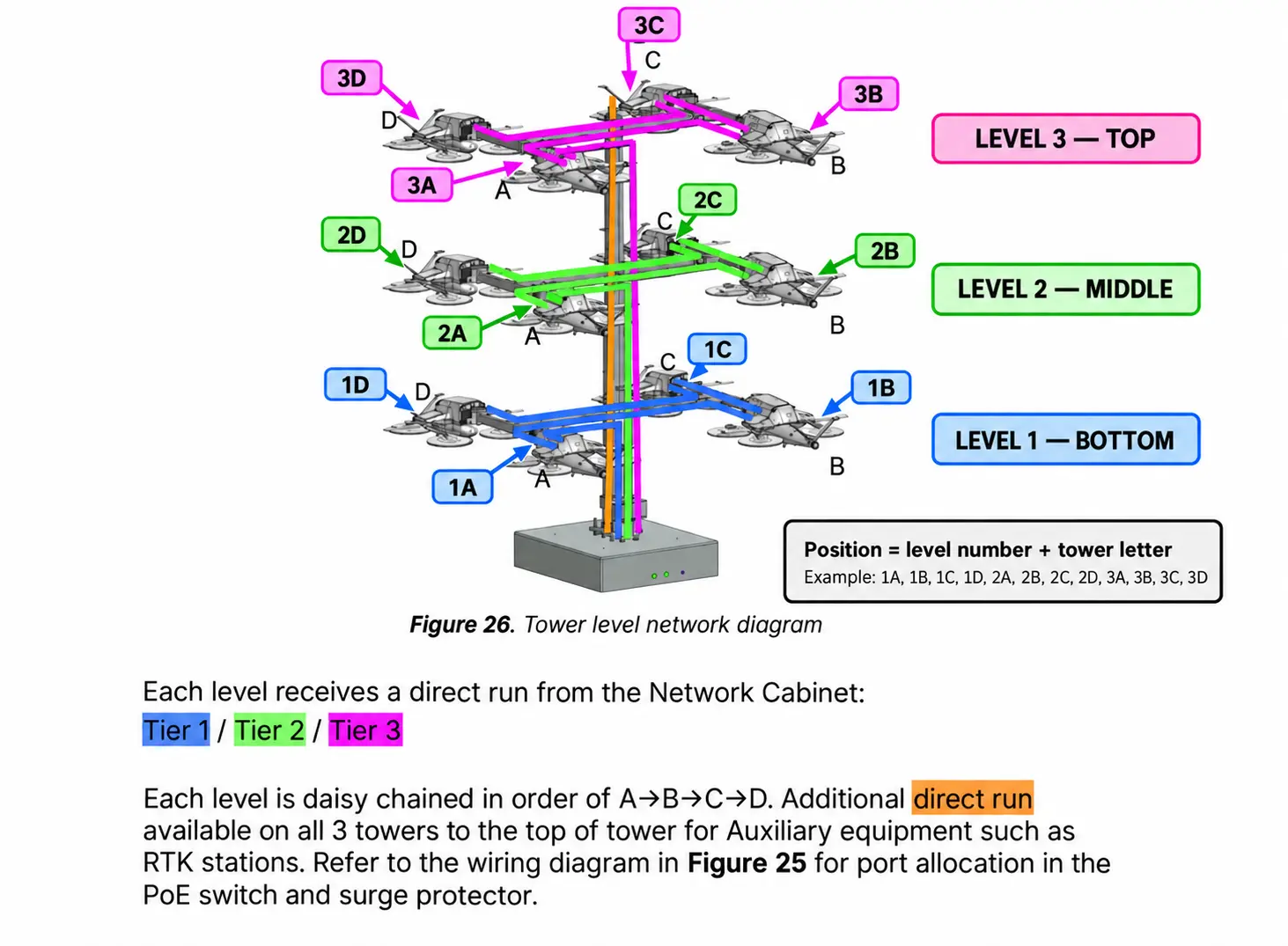
A 12-dock structure has three levels with four dock positions on each level:
-
1 = Bottom, 2 = Middle, 3 = Top-
A, B, C, and D = Tower position- For example,
1D is the bottom dock at position D.In Fleet Wrangler, the tower suffix identifies the letter, while the row identifies the level:
- Top row = Level 3
- Middle row = Level 2
- Bottom row = Level 1
Each level receives a separate Ethernet run from the network switch and is daisy-chained in the same order:
-
Switch -> 1A -> 1B -> 1C -> 1D-
Switch -> 2A -> 2B -> 2C -> 2D-
Switch -> 3A -> 3B -> 3C -> 3DA failure affects the failed dock and any docks downstream:
- A down -> A, B, C, and D may be down
- B down -> B, C, and D may be down
- C down -> C and D may be down
- D down -> Only D should be down
Use the first affected dock in the chain to identify the likely cable, connection, or dock failure.
Is the issue occurring on the top dock, and is the top dock linked to the bottom dock by a daisy chain?
sudo systemctl restart network_configThen confirm whether restarting the network configuration:
- Restored Ethernet connectivity
- Cleared the
NO_INTERNET_VIA_ETHERNET alarm from both docksNO_INTERNET_VIA_ETHERNET from both docks?These WO instructions are intended for the GSSO team. If you are a GSSO technician, continue with the following inspections.
- Visually inspect the entire accessible cable run.
- Check the RJ45 connectors at both ends for looseness, damage, or corrosion.
- If either connector is loose, broken, damaged, or corroded, reterminate it.
- After completing any repairs, retest the connection.
Did the test pass with no Ethernet-related alarms present in Fleet Wrangler?
Inspect:
- The surge protector at the tower base
- The surge protector at the network cabinet
Check each surge protector for:
- Corrosion
- Loose connections
- Physical damage
- Signs of electrical failure
Test each surge protector individually using two known-good Ethernet patch cables:
- Connect one patch cable to the
IN port of the surge protector.- Connect the other patch cable to the
OUT port.- Connect the open end of one patch cable to the remote unit of the Ethernet cable tester.
- Connect the open end of the other patch cable to the main testing unit.
- Perform a continuity/pattern test.
If the tester identifies an open pair, open line, or incorrect pattern, replace the surge protector.
Repeat the test for the second surge protector.
After replacing any suspect or failed surge protector, retest the connection.
Did the test pass with no Ethernet-related alarms present in Fleet Wrangler?
Use an Ethernet cable tester to test the complete external run from the network-cabinet port to the tower base.
If the test fails:
- Repair or reterminate the affected cable or connector.
- Repeat the test.
Did the test pass with no Ethernet-related alarms present in Fleet Wrangler?
If the external run passes, test the internal Ethernet run from the tower base to the docks.
- Inspect all accessible connections.
- Reterminate any connections that are loose, damaged, or corroded.
- Repeat the cable test after completing any repairs.
Did the test pass with no Ethernet-related alarms present in Fleet Wrangler?
- If either cable run fails, repair or reterminate the affected section and retest it.
- If both the external and internal Ethernet runs pass end-to-end, the issue likely originates with the dock hardware, such as the AC bulkhead or dock controller.
Assign a WO to replace the affected dock on the tower. The removed dock must be sent to the Hub for further troubleshooting.
Resolution note
This plaintext block is ready to paste into the Resolution Note field on the ZERP issue you're working. The permalink below gives engineering review access to the full step-by-step timeline including any back-navigation; share it if the case needs a deeper look.
Permalink:
Session is too large to fit in a URL. Use Download session JSON to share the timeline out-of-band.
Did this guide help you get unblocked?
Open suggestions
There are no open suggestions.
Open pull requests
There are no open pull requests.