

Aircraft/Droid Alarm Report
Viewing this guide for
Locating an Alarm Report
Section titled “Locating an Alarm Report”Some alarms in the Alarms section have an icon to the right of the alarm name (square with an arrow pointing to the top right).
-
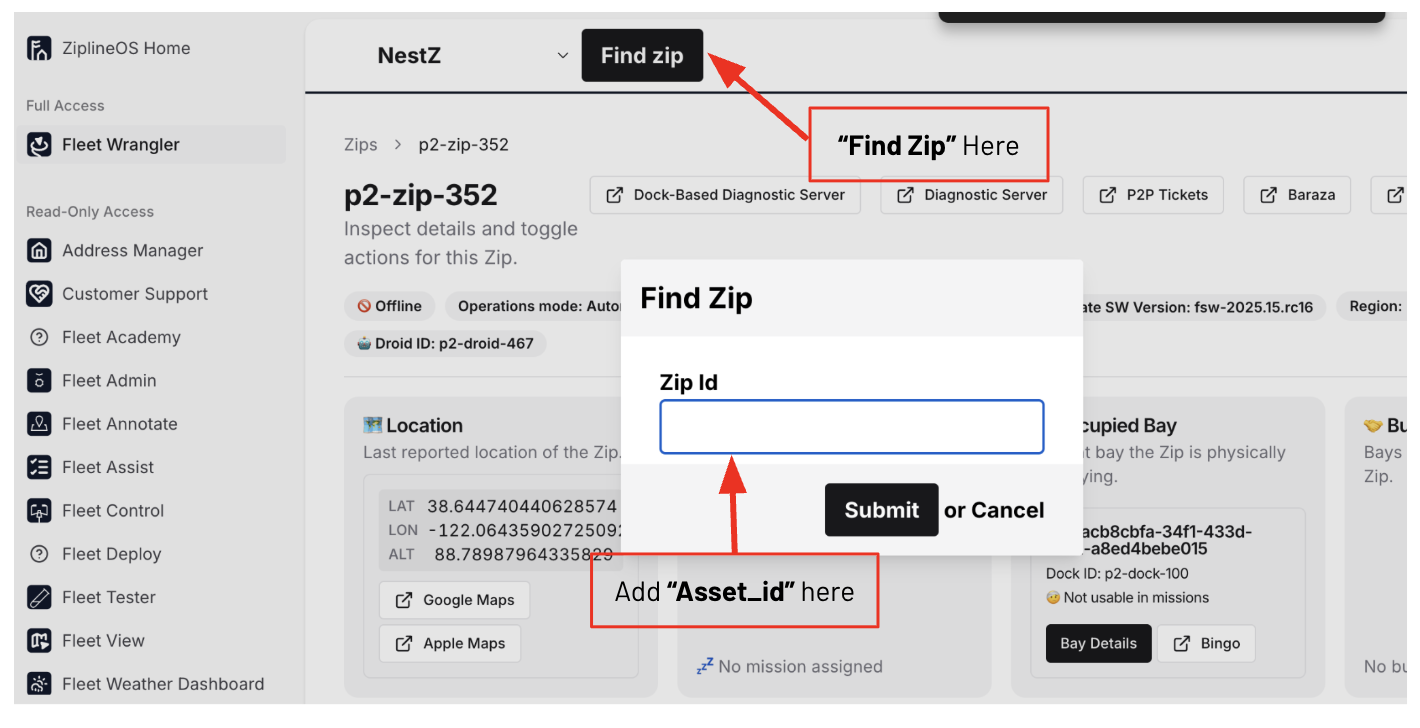
In Fleet Wrangler:
- Click Find Zip.
- Enter the Aircraft asset ID (matching the failed Aircraft number).
- Click Submit.
-
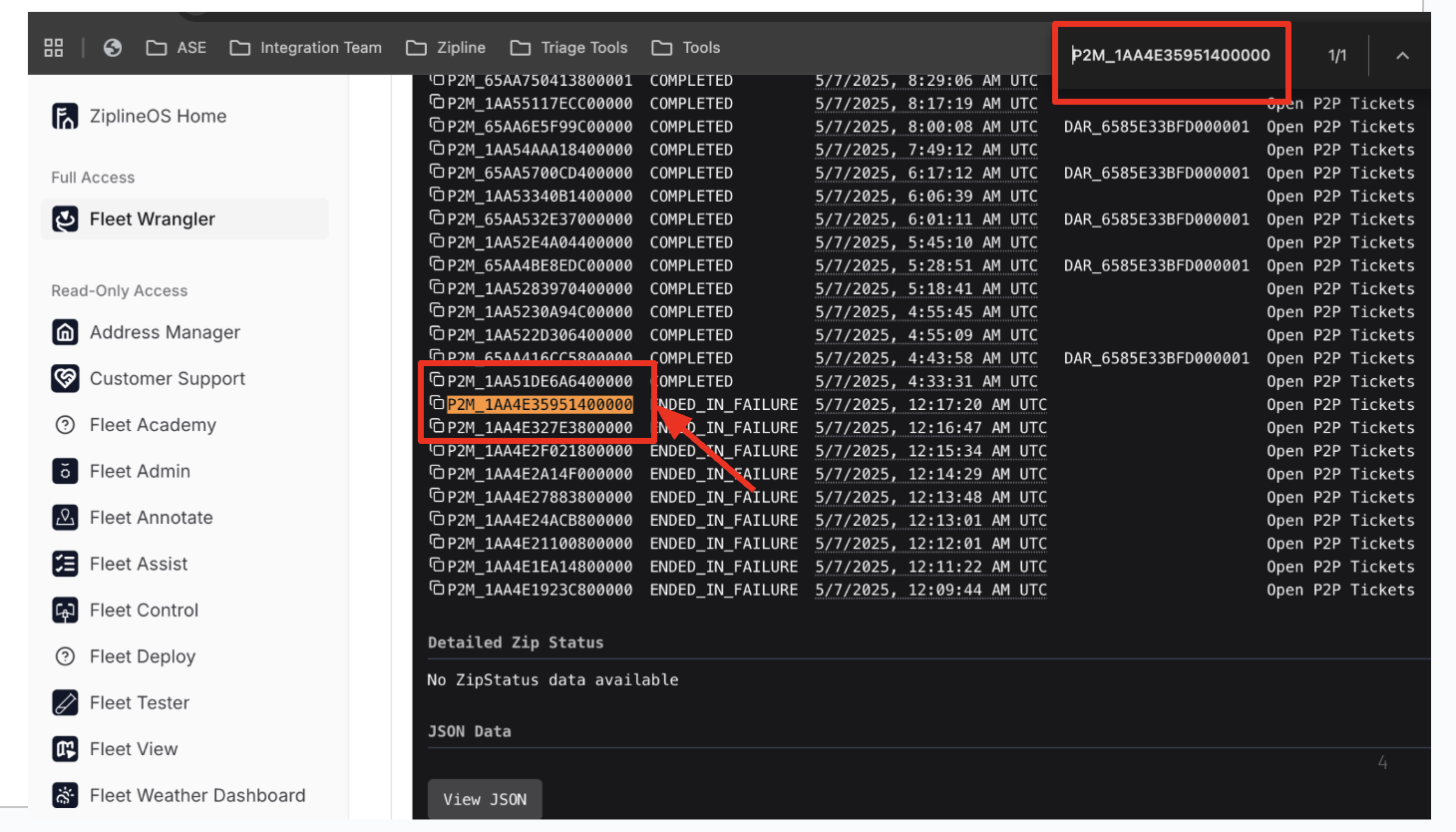
Enter the mission ID for the failed mission in the Search at the top of the view, then click on the mission ID in the results list.
-
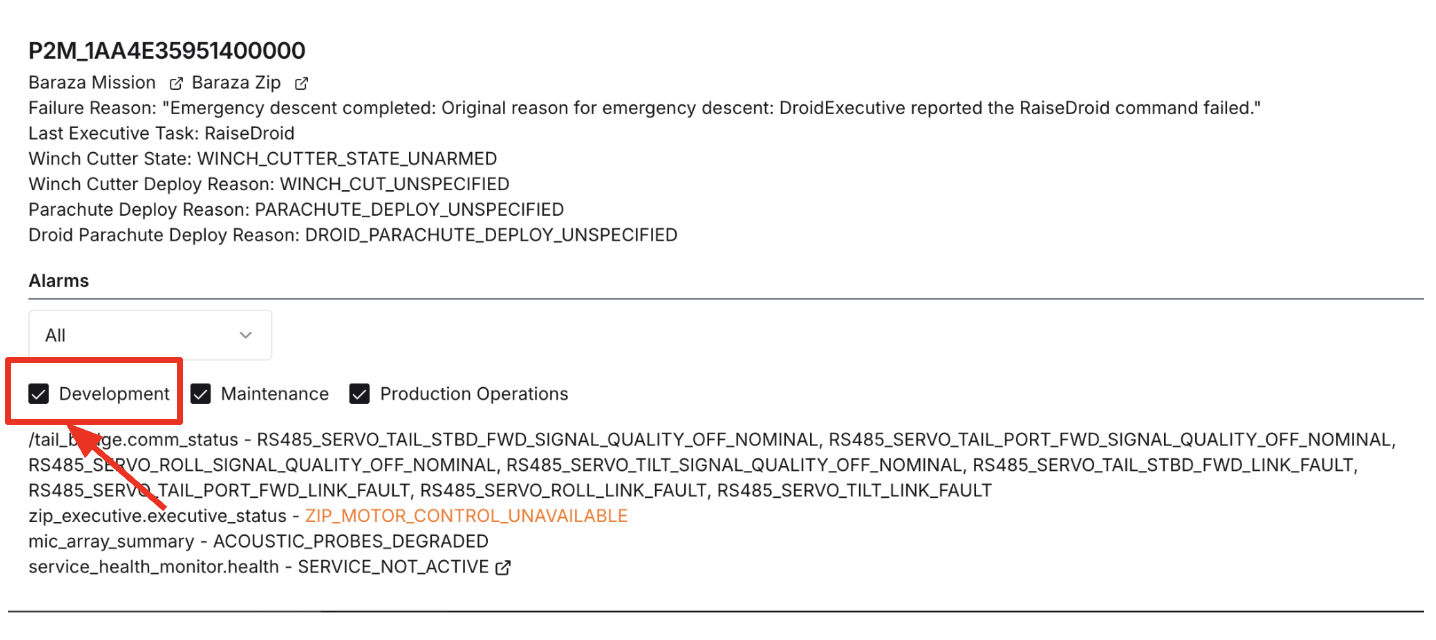
On the page for the failed Mission ID, select Development to view all activated alarms.
-
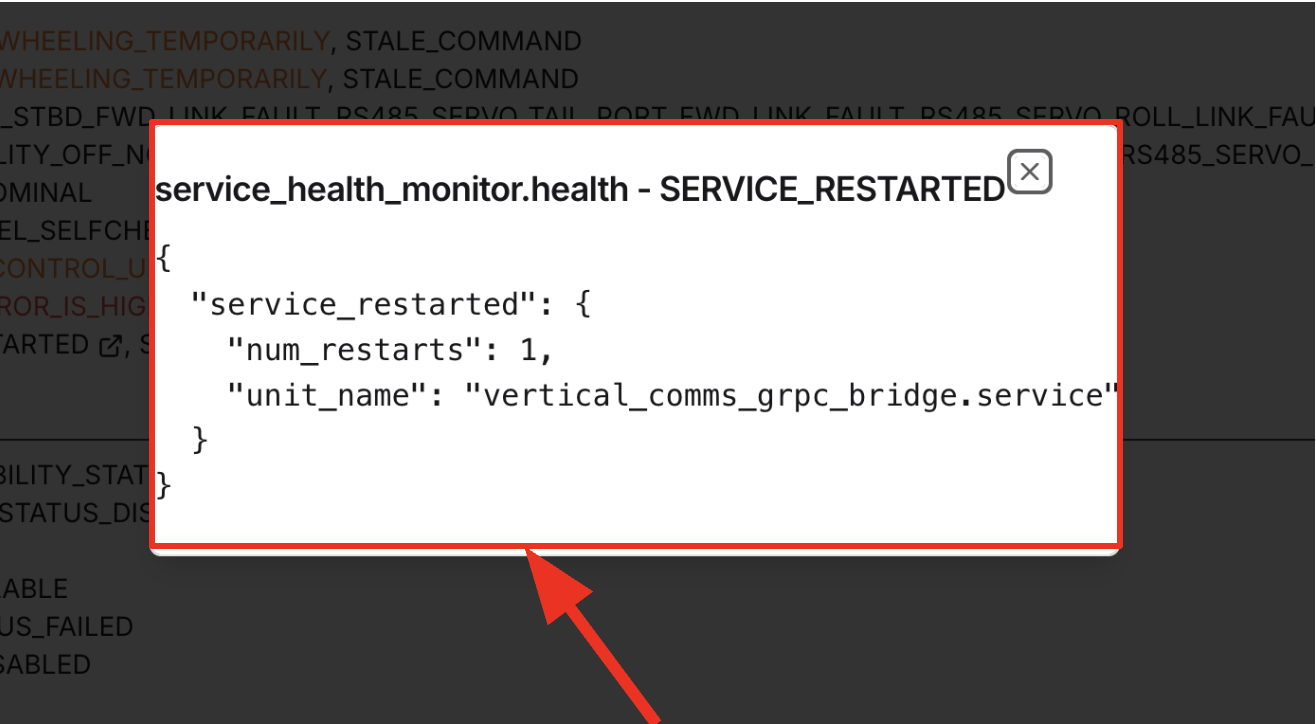
Click on the icon to the right of the alarm name to view the alarm report, which provides additional information about the service that restarted or other alarms that activated.
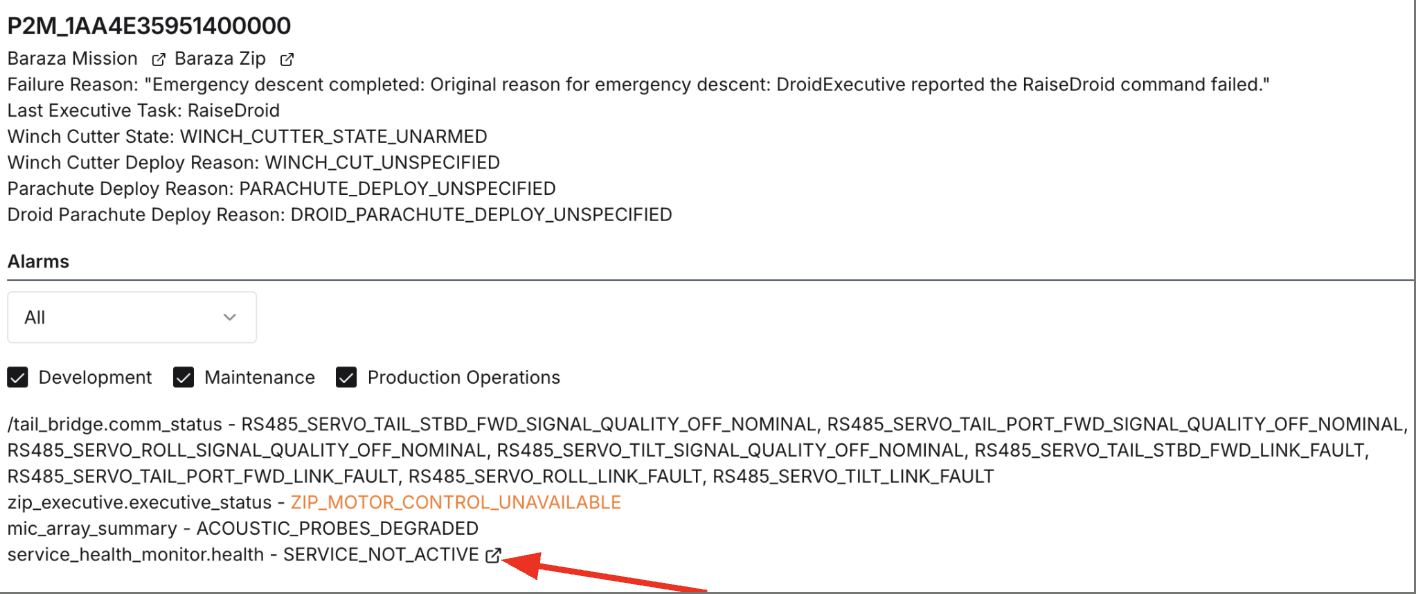
It is helpful to include this additional information in the ticket.
Example alarm report:
Did this guide help you get unblocked?
Open suggestions
There are no open suggestions.
Open pull requests
There are no open pull requests.