

Section 4 - Author with Codex
Codex can handle the Markdown and repo structure. You provide the technical information and review the result.
As you author, keep the local preview open so you can review the rendered topic after Codex edits the files. If the preview is not running yet, use Start the local preview before you continue authoring.
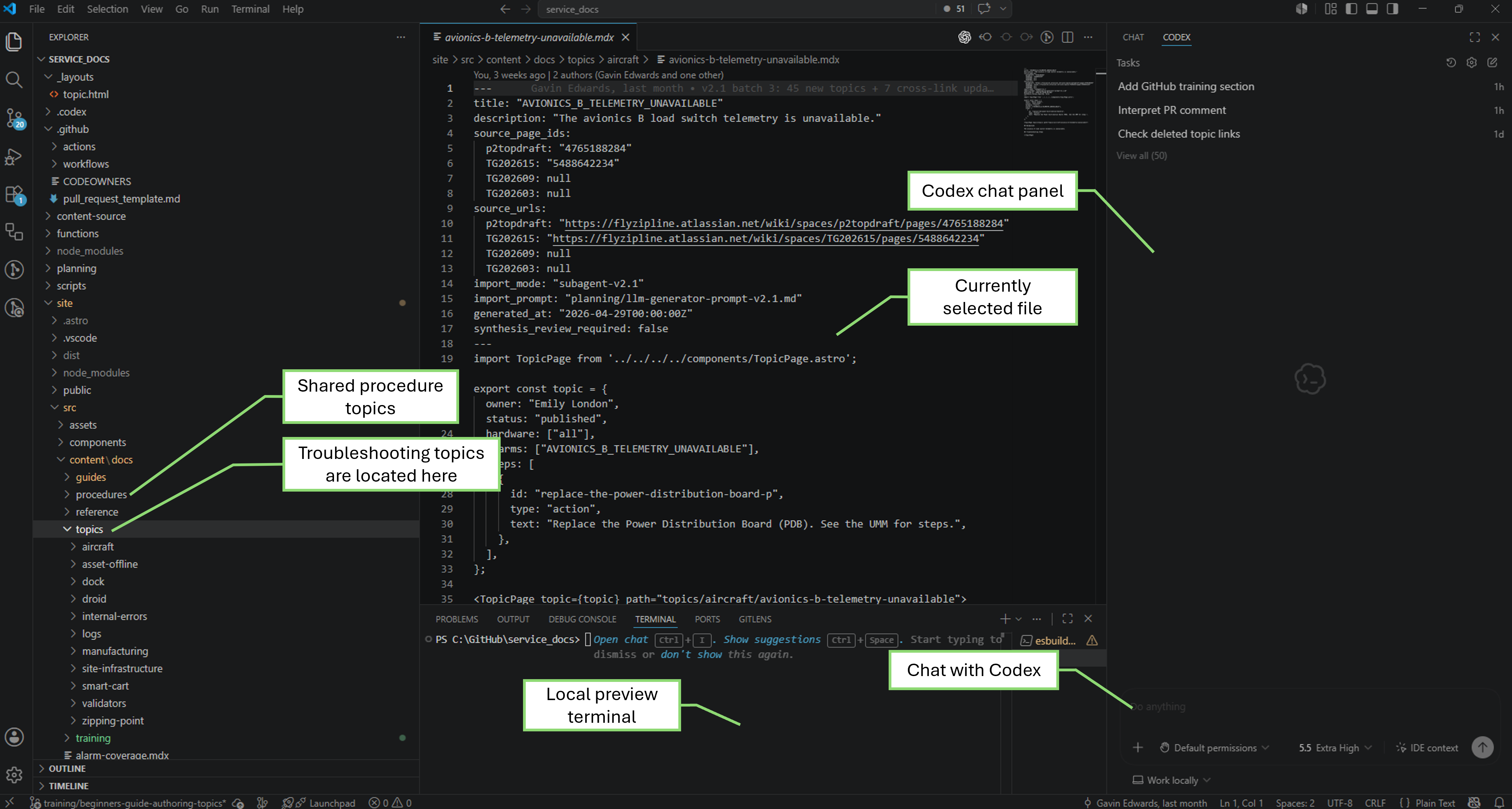
Keep The Authoring Workspace Open
Section titled “Keep The Authoring Workspace Open”Keep these open while you work:
- VS Code with the repo files
- the Codex chat panel
- the terminal running
npm run dev - the browser tab showing the local preview
After Codex edits a topic, check the browser tab. If the page does not update automatically, refresh the browser.
Your workspace should look similar to this:
You can write to Codex the same way you would explain the change to another person:
- “Create a topic for this alarm.”
- “Update this existing topic with the new inspection step.”
- “Here are screenshots from Baraza.”
- “This troubleshooting flow should end in a work order, not escalation.”
- “Make this clearer for a Maintenance Technician.”
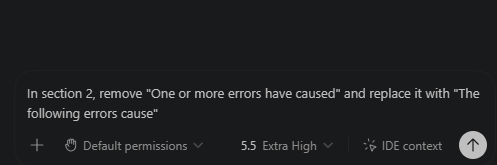
For example, you can type a plain-English request directly into the Codex chat panel:
If you want to use ChatGPT to shape rough notes before Codex edits the repo, use Appendix C - Drafting with ChatGPT.
A good authoring prompt
Section titled “A good authoring prompt”Use this template when creating a new topic:
Create a new service_docs troubleshooting topic for [alarm or issue].
Please inspect existing topics in the likely category before editing so the new topic matches repo conventions.Use the existing TopicPage/action-flow pattern.Do not invent troubleshooting steps.Create the initial draft with the information available and identify missing technical details without inventing them.Do not add guide-owner fields or an Engineer Owner table.
Here is the information I have:- Alarm name or code:- Hardware or asset type:- What the reader sees:- What the likely cause is:- What the reader should check first:- What action should be taken:- When to escalate:- Screenshots or notes:
Use this template when updating an existing topic:
Update [file path or topic URL] with the following change.
Please read the existing topic first, then make the smallest clear edit.Keep the current style and structure.Do not change troubleshooting logic beyond what I describe.After editing, summarize which files changed and what I should verify in the local preview.
Change details:[paste notes, screenshots, Slack context, or rough wording]
What to give Codex
Section titled “What to give Codex”The better the source material, the better the draft. Useful inputs include:
- alarm constants, hex codes, or exact UI text
- screenshots of the error, plot, dashboard, or source page
- rough bullet points from a hardware engineer or Service Engineer
- the expected repair or inspection
- the condition that means “stop and escalate”
- the condition that means “return to service”
- links to related existing topics or shared procedures
- the documented escalation path and any technical context from FSE or Engineering contacts
You can paste screenshots directly into the Codex chat. If the screenshot needs to become part of the docs page, ask Codex where to save the image in the repo and what file path to use.
What Codex should do
Section titled “What Codex should do”Ask Codex to:
- inspect nearby topics before drafting
- choose the right content directory
- reuse shared procedures instead of copying long repeated instructions
- create clear action and question steps
- add images only when they help the reader make a decision
- run validation after editing
- explain the diff in plain English
Review the rendered page
Section titled “Review the rendered page”Check the browser, not just the file.
If you cannot see the browser preview, use Start the local preview.
Look for:
- the page loads without an error
- the title and description make sense
- decision-tree buttons appear in the right order
- yes/no labels are not backwards
- links go to the expected pages
- images are visible and not too small to read
- no raw Markdown, MDX, broken shortcode, or code syntax appears in the rendered page
- the page reads clearly for someone using it under pressure
Use the preview to catch things that are hard to see in raw Markdown:
- confusing step order
- yes/no buttons that feel backwards
- images that are too large or too small
- headings or notes that look awkward on the rendered page
Ask Codex to fix what you see
Section titled “Ask Codex to fix what you see”Use plain English:
The local preview mostly works, but the second decision box is confusing.Please rewrite that question so the Yes and No choices are obvious.Do not change the rest of the flow.Or:
The screenshot is too large in the rendered page.Please adjust it using the repo's existing image patterns.Or:
This page still sounds like notes for an engineer.Please make it clearer for a Maintenance Technician while preserving the technical meaning.When the preview looks good
Section titled “When the preview looks good”Ask Codex for a final local check:
Please review the rendered-page risks for this change.Tell me what I should click through or verify before we prepare the pull request.What you must verify
Section titled “What you must verify”For a new guide, review the available information, open a PR, and always use Technical Contacts by System to find and manually assign the relevant FSE. The FSE completes the draft on the same branch and verifies it before TW/SE2 review.
For an existing-guide edit, review the Guide content checklist before opening or updating the PR.
When the rendered page looks right, continue to Prepare the pull request.
For more detail
Section titled “For more detail”Use these Author training sections when the topic needs deeper service-docs structure:
- Topic structure - learn the parts of a topic file and how they render on the page.
- Writing the troubleshooting flow - choose between action, question, escalation, reference, and telemetry steps.
- Workflow outcomes - make sure every path ends in return to service, asset requires maintenance, or escalate.
- Software and hardware applicability - handle steps that differ by software version or hardware type.
- Codex prompt reference - use more detailed prompt templates after you are comfortable with the beginner workflow.
- Alarm aliases and redirects - route additional alarm identifiers to an existing topic when the troubleshooting flow is the same.