Topic structure
What a topic file is
Section titled “What a topic file is”A canonical topic is a single Markdown file (.mdx) with four parts the build pipeline reads top to bottom. Once you can name all four in any topic file, you can read every other topic in the repo.
- Frontmatter (the block bounded by
---at the top) — title and description. topicJavaScript object — the operational guts: status, MX approval, hardware, alarms, software versions, and the orderedsteps[]graph.<TopicPage>wrapper — the component that renders the object and threads the Markdown prose into the right slots on the page.- Background and Troubleshooting Steps prose — the only free narrative, scoped to non-step context the technician needs.
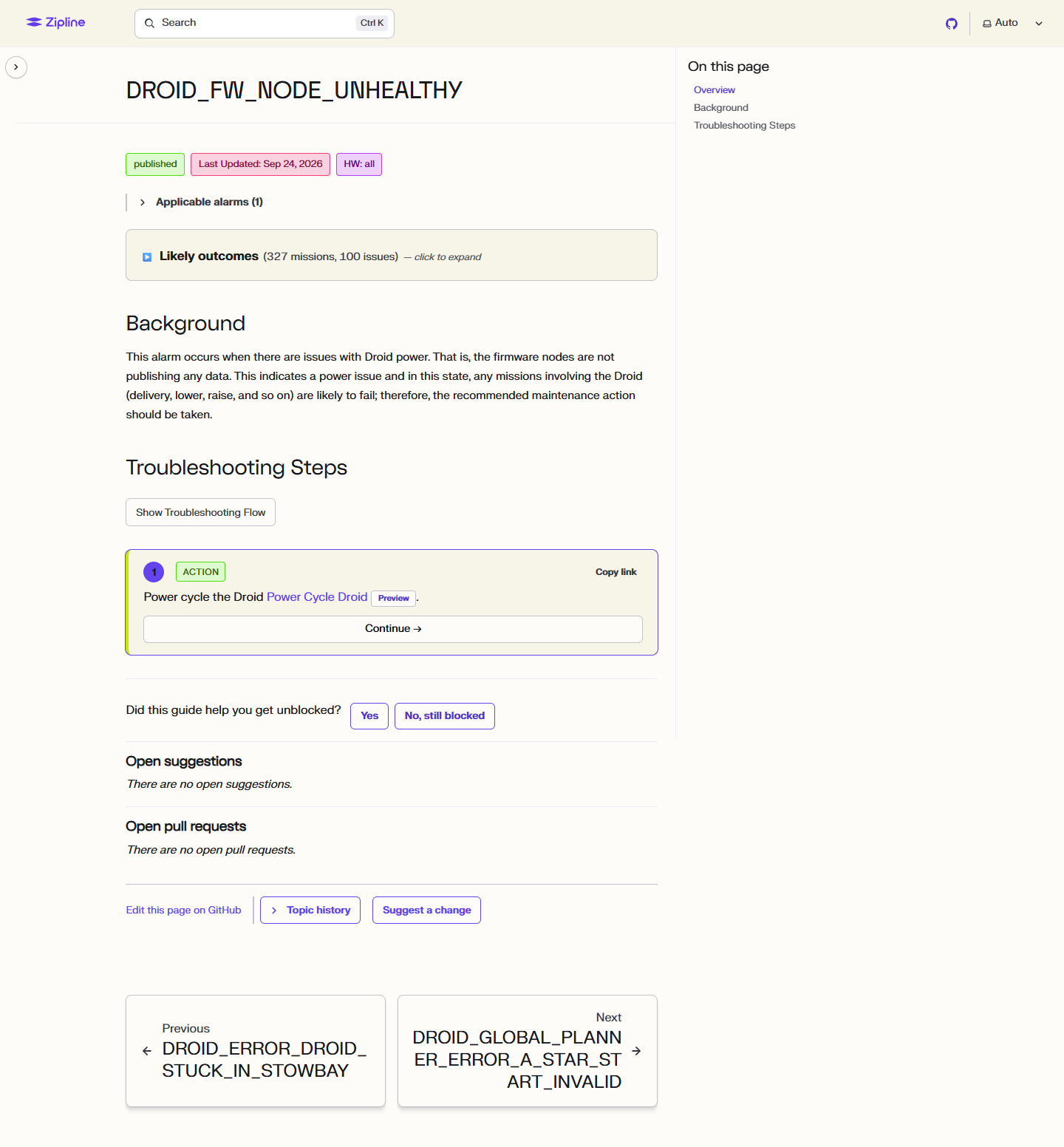
The technician never reads this file. They see the rendered page in rendered-topic-full.png. Every byte here exists to make that page land cleanly when the alarm report comes up at the partner site or the bench.
Frontmatter — what each field does
Section titled “Frontmatter — what each field does”Use these fields to identify and summarize the topic:
title— the alarm constant, exactly as FlightSystems names it.description— one sentence; drives the alarm index and search results.
title: "DROID_FW_NODE_UNHEALTHY"description: "This alarm occurs when there are issues with Droid power."The topic object — the operational guts
Section titled “The topic object — the operational guts”Every next and every options[].next points at the id of another step in the same array. Continuous-integration checks fail the pull request if a next points nowhere, if a step is orphaned, or if the graph has more than one entry point. The example below is a complete, connected four-step graph: one action, one question, one terminal escalation, and one terminal action for return-to-service.
The real droid-fw-node-unhealthy topic has a few more steps between these — a 60-second wait, a couple of branching diagnostics. The principle is the same: every step has an id, every flow-control reference points at another id, and the connectivity check enforces both.
export const topic = { status: "published", approvedForMx: null, hardware: ["all"], alarms: ["DROID_FW_NODE_UNHEALTHY"], steps: [ { id: "power-cycle-the-droid", type: "action", text: "Power cycle the Droid [Power Cycle Droid](/procedures/power-cycle-droid/).", next: "is-the-alarm-still-set", }, { id: "is-the-alarm-still-set", type: "question", text: "Is the alarm still set?", options: [ { label: "Yes", next: "escalate-to-embedded-linux-on-call" }, { label: "No", next: "the-aircraft-may-return-to-service" }, ], }, { id: "escalate-to-embedded-linux-on-call", type: "escalation", text: "Escalate to [[EscalationPath:embedded-linux]].", }, { id: "the-aircraft-may-return-to-service", type: "action", text: "The aircraft may return to service.", }, ],};MX approval states
Section titled “MX approval states”The approvedForMx field defines whether the topic is approved for Maintenance Technicians to use. Service Engineering owns the decision to approve or not approve a topic for Maintenance Technician execution, in coordination with the Technical Writer. Keep approvedForMx set to null until that review and decision have occurred. Authors, automated reviewers, and AI tools must not infer or independently change the approval state.
The field has three valid values:
| Value | Meaning | Badge behavior |
|---|---|---|
null |
The topic has not yet been assessed for Maintenance Technician execution. This is the default for new topics. | No badge |
true |
An authorized reviewer assessed the topic and approved it for Maintenance Technicians to execute. | Displays the green Approved for MX badge |
false |
An authorized reviewer assessed the topic and did not approve it for Maintenance Technicians to execute. | No badge |
Use the JavaScript values exactly as shown, without quotation marks. Values such as "true", "yes", or "not approved" are invalid and fail validation. null and false look the same on the rendered page, but they preserve different review states in the topic file.
The <TopicPage> wrapper and prose
Section titled “The <TopicPage> wrapper and prose”The wrapper renders the topic object as the decision tree on the page; the prose above each ## heading shows up in the slot of that name.
<TopicPage topic={topic} path="topics/droid/droid-fw-node-unhealthy">
> Applicable to all hardware versions
## Background
This alarm occurs when there are issues with Droid power. That is, thefirmware nodes are not publishing any data. ...
## Troubleshooting Steps
</TopicPage>
Guides have no individual owner or SME fields. Use Technical Contacts by System for expertise and the FSE for a new-guide handoff.
Required vs optional metadata
Section titled “Required vs optional metadata”Required
Section titled “Required”title— the alarm constant inSCREAMING_SNAKE_CASE.description— one sentence summarising the failure.topic.approvedForMx— one of the three values described in MX approval states above; new topics start asnull.topic.alarms[]— one or more alarm identifiers that should route readers to this guide. Use the canonical alarm constant, and add hex codes or equivalent constants only when they share the same troubleshooting flow; see Alarm aliases and redirect-only topics.topic.steps[]— the decision tree.topic.status- set topublishedbefore the topic ships; operations cannot use a guide markeddraft.topic.hardware- hardware labels, includingallwhen the topic applies to all versions.
Optional
Section titled “Optional”topic.softwareVersions— only when steps differ across software builds.
Source maps to rendered page
Section titled “Source maps to rendered page”rendered-topic-full.png is what the technician sees. Before opening the example screenshot, use this field-by-field map to know what to look for:
titleanddescription→ page heading and subhead.status,approvedForMx,hardware, andalarmsrender the metadata strip above the steps. OnlyapprovedForMx: truerenders the Approved for MX badge.topic.steps[]→ the numbered decision tree the technician walks at the bench.- Background prose → the paragraph above the steps.
- File lives at
site/src/content/docs/topics/<category>/<slug>.mdx; category (droid) is the folder, slug (droid-fw-node-unhealthy) is the filename, and both appear in the rendered URL. Thepathprop must match — nevertopics/<slug>alone.
Rendered topic example