Section 3 - Start each change safely
Start every authoring session from a clean branch. This protects other work and keeps your pull request focused.
You do not need to memorize the Git commands. Ask Codex to do the setup and explain what it is doing.
Why branches matter
Section titled “Why branches matter”Think of a branch as your private workspace for one change. It does not affect the published site. It does not affect main. It gives reviewers a clean set of edits to inspect later.
Use one branch per topic or closely related set of edits. If you are updating two unrelated topics, use two branches and two pull requests.
For more detail about branches, commits, pushes, pull requests, and automated checks, see Automated checks and review signals.
The safe-start prompt
Section titled “The safe-start prompt”Before editing, paste this into Codex:
I want to work on a service_docs topic.Update main and create a new branch.If there are uncommitted changes, stop and explain what files are changed before doing anything else.Do not edit documentation yet.Codex may ask for permission before it updates main or creates the branch. Not every user will see these prompts.
-
If you see a prompt to update the local
mainbranch fromorigin: Confirm that the command shown isgit pull --ff-only, then select Allow once.Update local main permission example
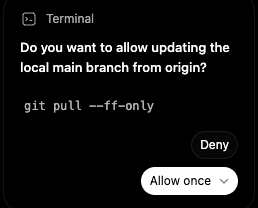
-
If you see a prompt to create and switch to a new branch: Confirm that the command begins with
git switch -cand that the branch is not namedmain, then select Allow once.Create and switch branch permission example
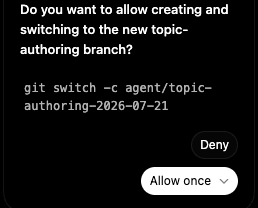
If the command is different from the expected command, select Deny and ask Codex to explain why it needs that command.
What Codex should check
Section titled “What Codex should check”Codex should confirm:
- which branch you are on
- whether there are uncommitted changes
- whether
mainis up to date - the new branch name
If Codex says there are uncommitted changes, pause. Those edits might be yours from a previous session, or they might belong to someone else using the same workspace. Ask Codex to explain the changed files before you continue.
After the branch exists
Section titled “After the branch exists”Once Codex has created the branch, you can start the actual authoring request. See Author with Codex.
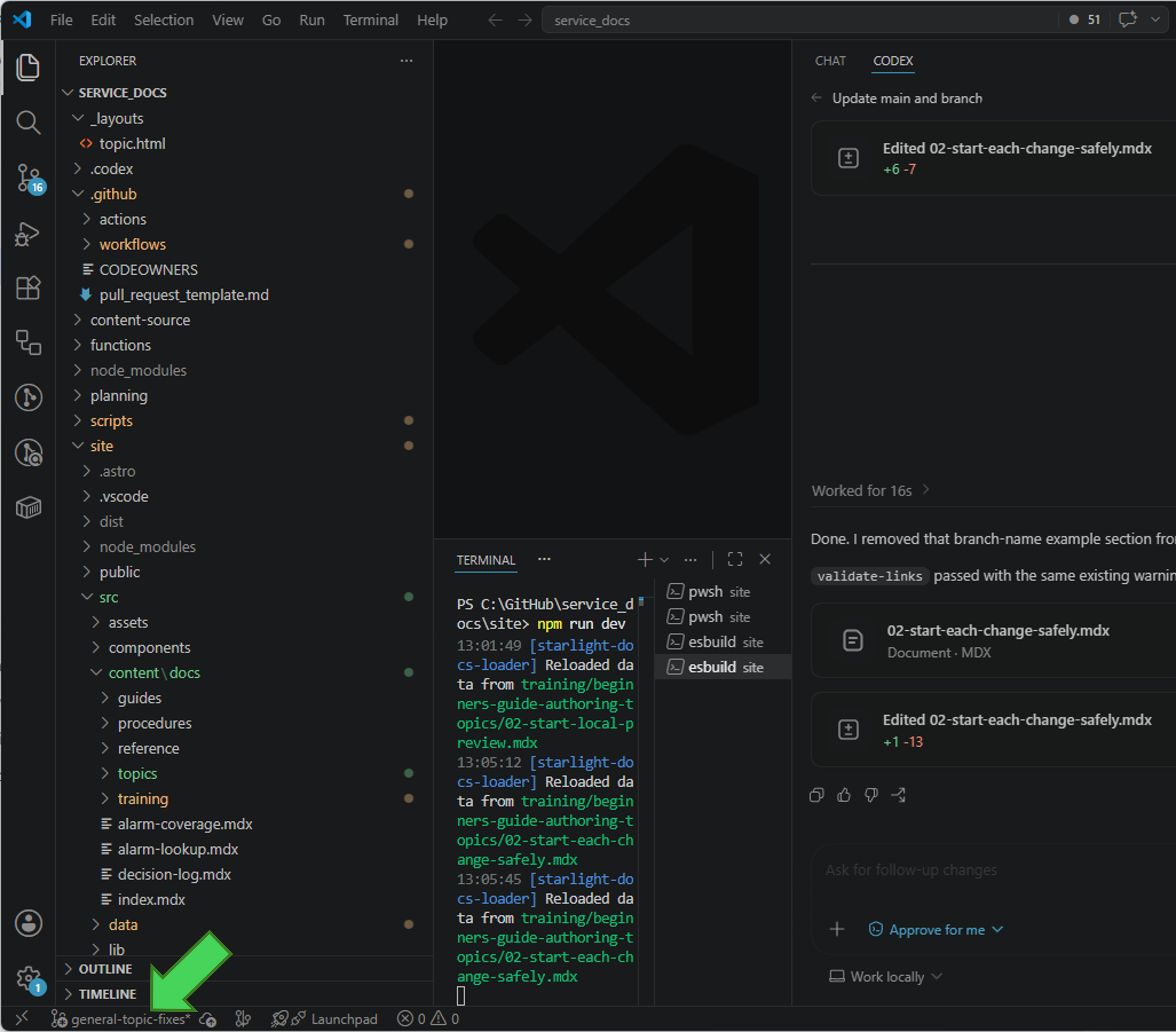
You can see which branch you are on, or if you are on main, by looking in the bottom left corner of the window.