
Repo Admin Documentation
This page is for people administering the service_docs repo. It collects operational notes that are useful for repo maintainers, but not part of the day-to-day troubleshooting guide.
What do you want to do?
Daily Tasks
This is a general checklist for daily admin tasks.
Review and merge auto-generated PR: chore: refresh generated data
The daily Refresh generated data action opens or updates a PR when generated data files change. An admin must review, approve, and merge the PR.
Select the Refresh Generated Data button above and follow the review procedure under Daily generated-data refresh to identify, review, approve, and merge the PR.
Review and approve pull requests
Check the Review Workflow table several times a day for pull requests that are in the Waiting for TW Review or Waiting for SE2 Review columns. Review them according to the review workflow.
See the Reviewer training material for the complete review process.
Check for author requests or comments
Check the #ask-troubleshooting-guide Slack channel. Engineers and other authors will often post there if they are stuck with a pull request, if they have a question about an update, or if they have something ready for review.
If the author has a pull request that is stuck for some reason, ask them for the PR link and then use Codex to investigate the pull request. Either have Codex fix the problem or ask it to provide an explanation of the problem and resolution steps that you can send to the author.
Support Authors
You do not need to be able to diagnose GitHub checks in order to help an author. Ask the author for the pull request (PR) link, then use Codex to investigate the problem.
1. Ask for the pull request
Ask the author to send you the link to the pull request that needs help.
2. Ask Codex to diagnose the problem
Open Codex in the service_docs repository. Replace [PASTE PR LINK] in the prompt below, then send the prompt to Codex.
View Codex diagnosis prompt
I am covering service_docs repository support. An author needs help with this pull request:

[PASTE PR LINK]

Investigate the pull request and determine what is preventing it from being ready to merge.

This is a read-only investigation. Do not modify files, create patches, switch branches, commit, push, approve or merge the pull request, comment on GitHub, rerun workflows, or make any other repository changes.

You may use read-only inspection to examine:

- the pull request description and changed files
- check results and failed job logs
- automated-review comments
- relevant repository documentation, workflows, validators, and scripts
- whether the branch is behind main

Report:

1. The specific problem.
2. The evidence that identifies the problem, including the failing check, exact error, and affected file when available.
3. The likely root cause.
4. Whether this is:
   - a change the author should make,
   - a stale-branch problem,
   - a repository automation or infrastructure problem, or
   - a permissions, token, or secret problem.
5. The recommended solution.
6. Anything that remains uncertain or requires additional access.

Use plain language suitable for someone with little GitHub experience. Do not implement the solution.
3. Ask Codex to prepare instructions for the author
After Codex reports the cause, send the following prompt in the same conversation.
View author-instructions prompt
Based on your investigation above, prepare an explanation and instructions that I can send to the pull request author.

This remains read-only. Do not modify files, create patches, commit, push, comment on GitHub, approve or merge the pull request, rerun workflows, or perform the proposed fix.

Provide two sections:

1. Message to send to the author
   - Explain the problem in friendly, plain language.
   - Explain why the check or review is blocking the pull request.
   - Give numbered steps for fixing it.
   - Identify the exact file, field, or content to update when known.
   - Explain what the author should expect after pushing the fix.
   - If the author can use Codex to make the change, include a safe copy-and-paste prompt they can give Codex.

2. Notes for the covering administrator
   - Explain how to confirm that the problem was resolved.
   - Identify which checks or review signals should become successful.
   - State whether any administrator action is required.
   - Clearly warn me if this is an infrastructure, permissions, token, secret, or repository-wide problem that should not be assigned back to the author.

Do not assume that either I or the author has advanced GitHub knowledge. Do not invent steps when the evidence is incomplete.
4. Follow the recommended next step
- Author-owned content problem: Send the prepared instructions to the author.
- Stale branch: Send the branch-update instructions prepared by Codex.
- Repository automation or infrastructure problem: Do not ask the author to change unrelated content. Escalate the Codex report.
- Permissions, token, or secret problem: Route it to the appropriate administrator or
#AskIT. - Cause remains uncertain: Ask Codex what additional read-only evidence it needs.
For background information, see Automated checks and review signals and CI failure examples.
GitHub Actions Workflows
The tables below list workflows in .github/workflows and include the following columns: Workflow,
Runs when, What it does, and Admin action.
A workflow's linked GitHub Actions page is the source of truth for whether it is currently enabled and for its latest run status.
PR checks and review automation
| Workflow | Runs when | What it does | Admin action |
|---|---|---|---|
| AI Content Review | Content pull requests targeting main | Reviews topic and procedure changes with OpenAI and posts or updates an A–F assessment on the pull request. | None normally. |
| Escalation Acknowledgment | Relevant pull request activity | Checks whether pull requests that change escalation paths include the required acknowledgment. | None normally. |
| Fleet Downtime Impact Review | Content pull requests opened or updated | Assesses fleet-downtime impact, records the result on the pull request, and posts or updates the assessment in Slack. | None normally. |
| Label platform infrastructure PRs | Pull requests opened, reopened, or updated | Keeps the platform/infrastructure label in sync with whether the pull request changes a file under scripts/, creating the label automatically if needed. | None normally. |
| PR Checks | Pull requests targeting main | Validates content, links, duplicate steps, escalation paths, generated-data ownership, and the site build. | None normally. |
| Triage smart-cart author PRs | Pull requests from wilsonjean-baptiste-netizen opened, reopened, or ready for review | Adds the smart-cart label and requests reviews from pinwenwang and cbmacewan. | None normally. |
Issues and generated data
| Workflow | Runs when | What it does | Admin action |
|---|---|---|---|
| Auto-merge owner directory | Completion of required checks, or manual run | Verifies, approves, and merges the tightly scoped GitHub user directory pull request. | None normally; failed automation leaves the pull request open for investigation. |
| Auto-merge topic issues | Completion of required checks, or manual run | Verifies, approves, and merges the tightly scoped topic-issues automation pull request. | None normally; failed automation leaves the pull request open for investigation. |
| Refresh generated data | Daily, or manual run | Regenerates the daily-owned data snapshots and opens or updates a reviewable automation pull request when they change. | Review, approve, and merge the generated-data pull request. |
| Refresh topic issues | Issue activity, hourly fallback, or manual run | Refreshes the Open Suggestions index and opens or updates its tightly scoped automation pull request. | None normally; failed automation leaves the pull request open for investigation. |
| Sync owner directory | Weekly, or manual run | Validates GitHub membership and assignability, then opens or updates a directory pull request for automatic approval and merging. | None normally. For a manual update, run on main with dry_run disabled; leave it enabled to validate only. |
Monitoring, publishing, and administration
| Workflow | Runs when | What it does | Admin action |
|---|---|---|---|
| Escalation Drift Check | Daily, or manual run | Compares documented escalation paths with Slack and incident.io and opens or updates an issue when drift is found. | None normally; detected drift is reported in a GitHub issue. |
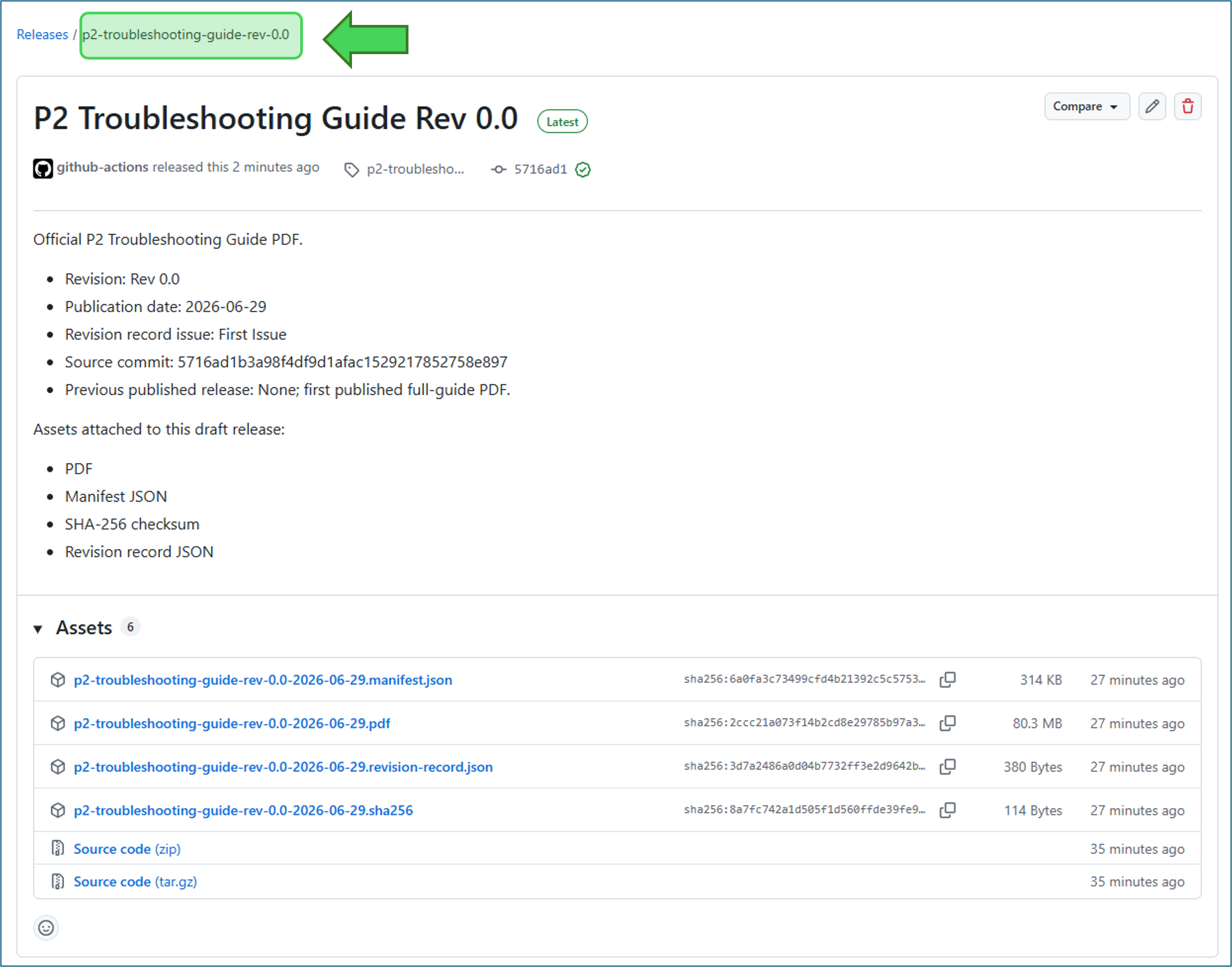
| Full Guide PDF | Manual run | Generates a point-in-time guide PDF and can create a draft GitHub Release for an official revision. | Provide the run inputs, verify the output, and publish an official draft release when appropriate. |
Generate guide PDF
Use the Full Guide PDF workflow to generate a point-in-time PDF of the P2 Troubleshooting Guide. The official PDF should be generated from main after guide changes and PDF-generator changes have been merged.
Before you start
- Confirm that the guide content to be published is already merged into
main. - Confirm the next revision number. The first official full-guide PDF is
0.0; later revisions should be sequential and unique. - Confirm the publication date to print in the PDF.
- For every official revision after
0.0, identify the previous full-guide release tag, such asp2-troubleshooting-guide-rev-0.0.
Run the workflow
- Open the
ZiplineTeam/service_docsrepository in GitHub. - Select Actions.
- Select Full Guide PDF.
- Select Run workflow.
- Choose the branch or ref to run from. For official PDFs, use
main. - Enter the workflow fields listed below.
- Select Run workflow.
| Workflow field | What to enter |
|---|---|
Use main for normal official PDFs | Use main for official PDFs. Use a branch or SHA for testing. |
| Manual revision number | Enter the revision number without the word Rev. Example: 0.0. |
| Publication date | Enter the PDF publish date using YYYY-MM-DD. Example: 2026-06-25. |
| Previous published full-guide release tag |
Leave blank for the first PDF. For later PDFs, enter the previous full-guide release tag, such as p2-troubleshooting-guide-rev-0.0.
Find the previous release tag
|
| Issue text for the Record of Revisions | Use First Issue for Rev 0.0. Use Maintenance Update for later published revisions. |
| Optional comma-separated content prefixes for scoped PDFs |
Leave blank for the full guide, or enter section prefixes for a scoped PDF.
Examples
|
| Optional page limit for test PDFs |
Use only for test PDFs.
Examples
|
| Create a draft GitHub Release | Select for official PDFs. Leave blank for test PDFs. |
Review the workflow output
After the workflow finishes, review the draft guide to ensure all is correct.
-
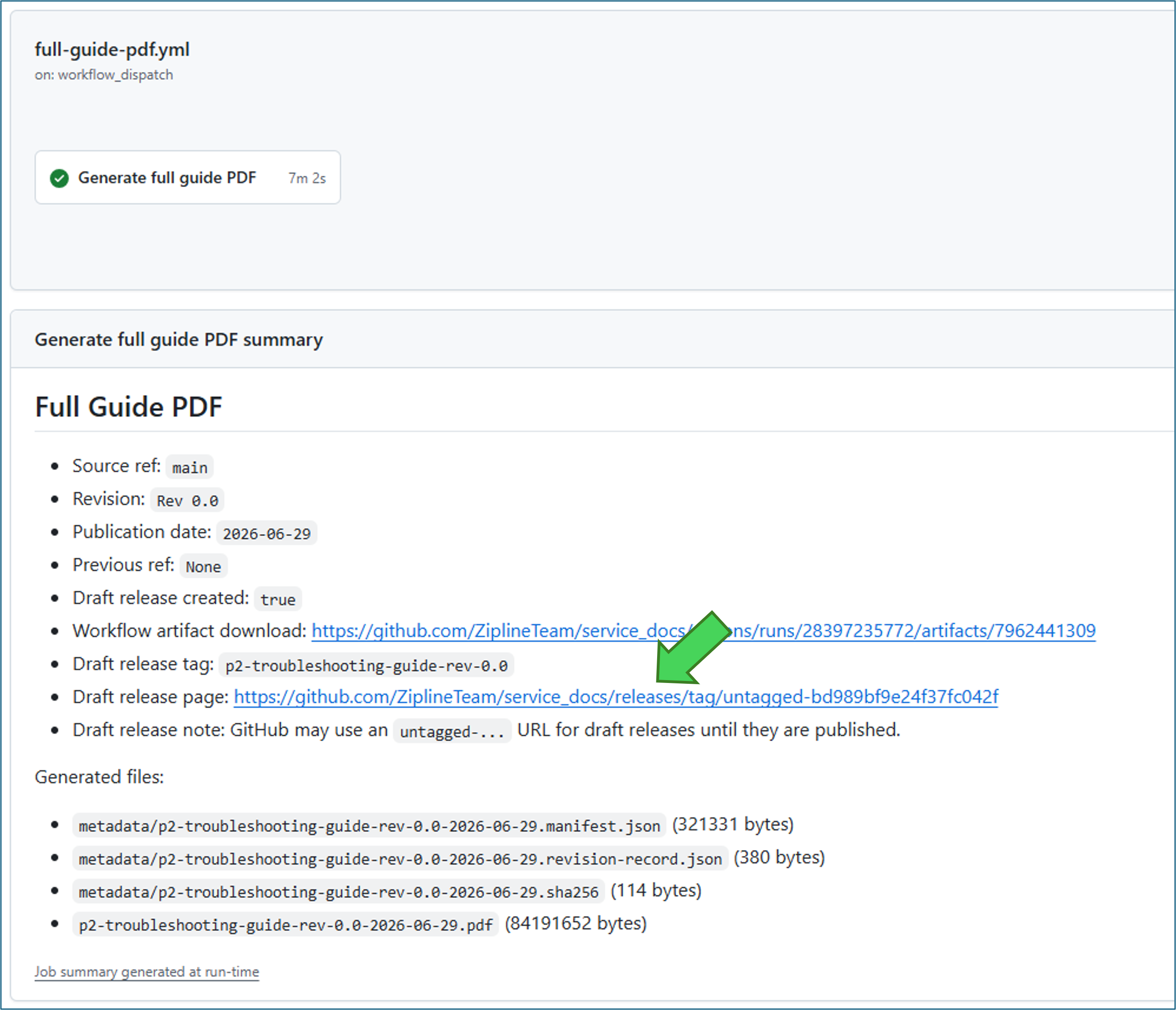
In the workflow summary Full Guide PDF section, click the Draft release page hyperlink.
Example
-
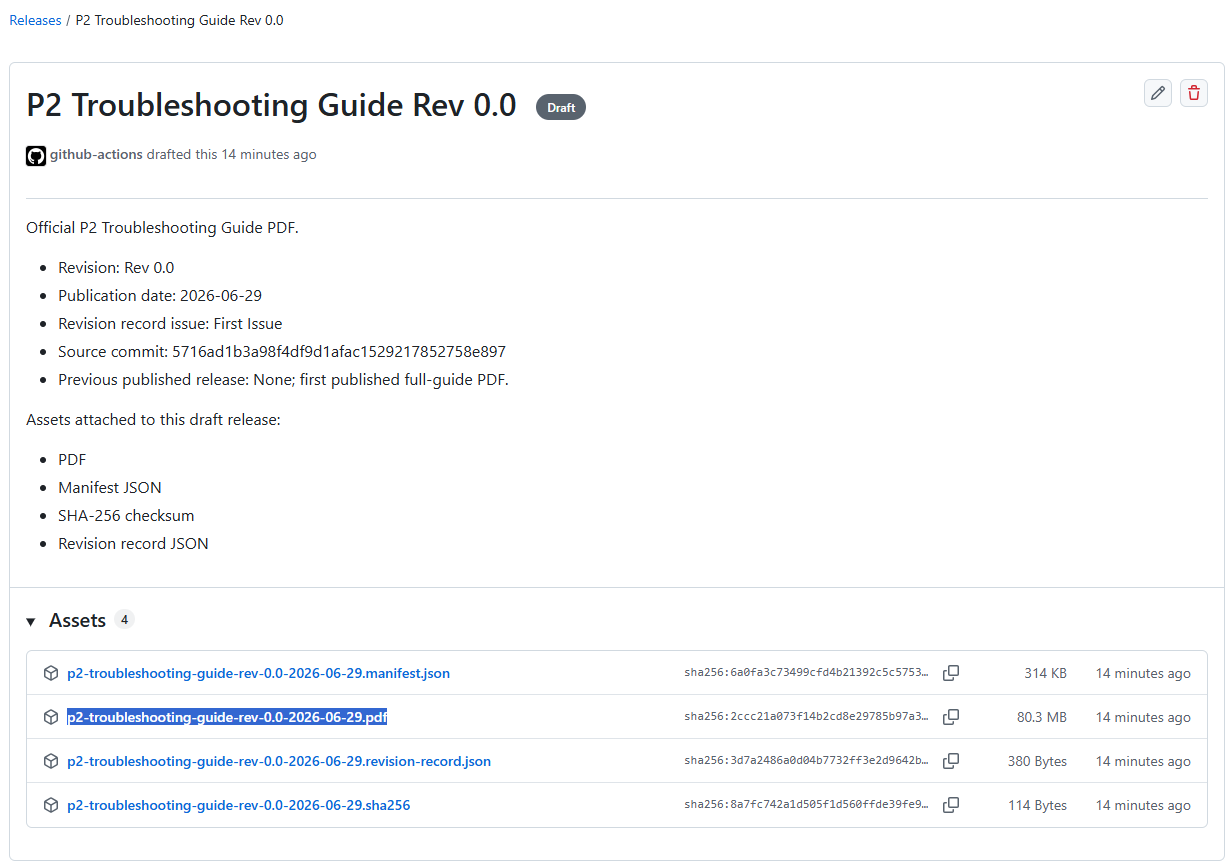
In the Assets area, click the PDF to download it to your local drive.
Example
-
Review the PDF to ensure all is correct.
- If the draft is correct, continue with the steps below to publish the guide.
-
If the draft is not correct:
- On the guide publish details page, click the pencil icon at the top.
-
In the yellow note at the top, click Discard draft.
Example

-
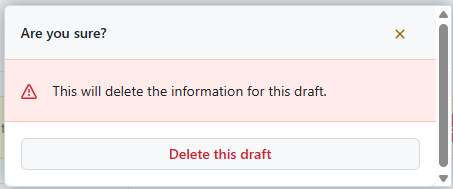
Confirm the deletion.
Example
- Fix the issues and rerun the workflow.
Publish the draft release
When you are ready to publish the draft guide:
- On the guide publish details page, click the pencil icon at the top.
-
Scroll to the bottom and click Publish release.
Example

Copy the PDF to Google Drive
- Download the PDF from the published GitHub Release assets.
- Upload that exact PDF file to the approved Google Drive folder used for manuals.
- Keep the generated filename unchanged so the Drive copy matches the GitHub Release asset.
- If the publication owner wants the audit files in Drive, also upload the manifest JSON, SHA-256 checksum, and revision-record JSON.
First official PDF
For the first PDF, use main, enter manual revision number 0.0, enter the PDF publish date using YYYY-MM-DD, leave the previous published full-guide release tag blank, set the Record of Revisions issue text to First Issue, leave the optional scoped content and page limit fields blank for a full guide, and select Create a draft GitHub Release. The Change Log will state: “This is the first published full-guide PDF. No prior published PDF exists for comparison.”
Refresh Generated Data
Two GitHub actions keep the site’s snapshot files current while keeping their updates out of normal contributor PRs.
Daily generated-data refresh
The daily Refresh generated data action opens or updates a PR when generated data files change. An admin must review, approve, and merge the PR. You can also run the action manually from GitHub Actions when needed. For more information, see "How the daily generated-data refresh works" below.
Review and merge the PR
-
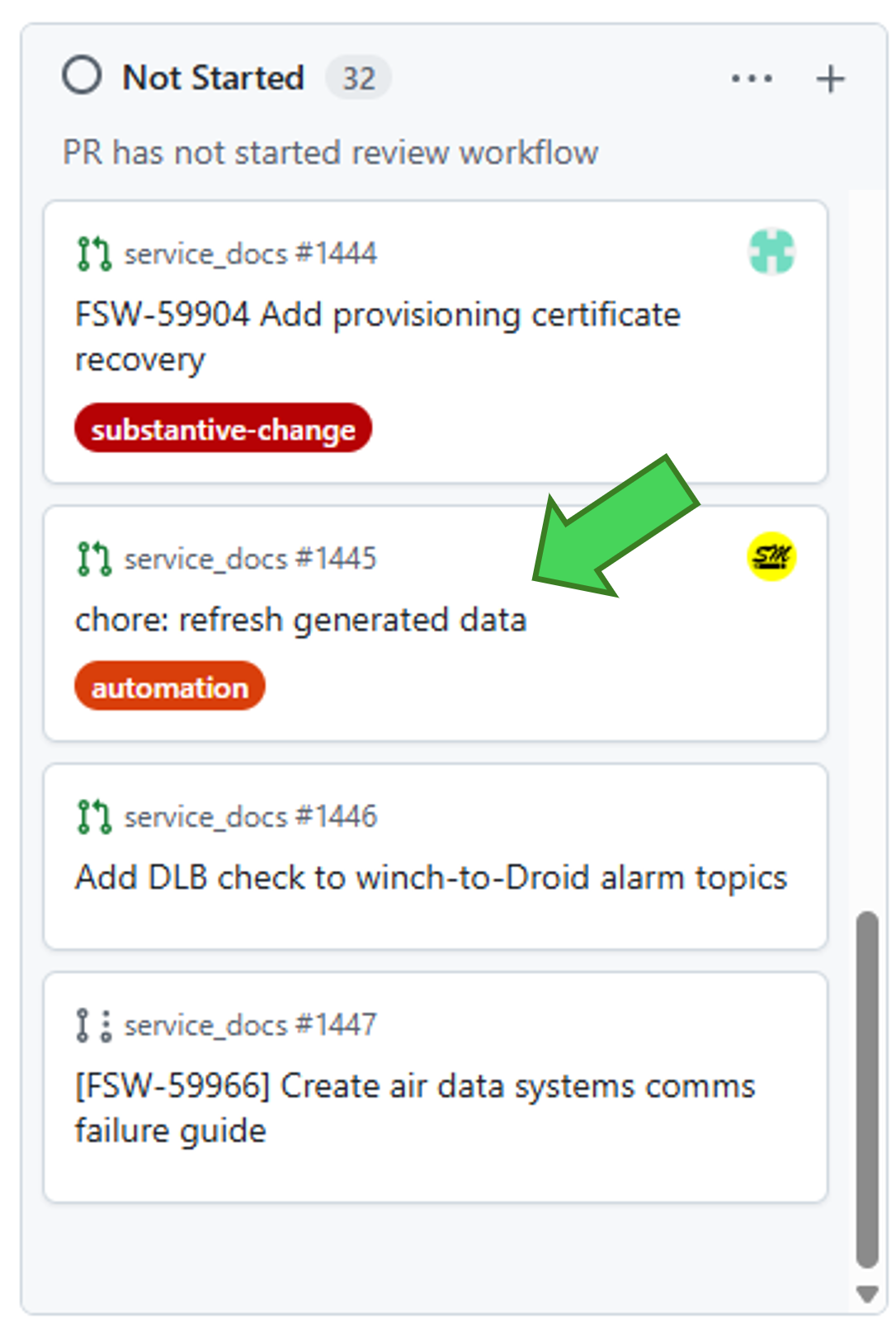
Look in the Not Started column of the Review Workflow table for an open pull request titled chore: refresh generated data. This PR is generated automatically each day.
Example
-
If one exists, use the following procedure:
Review and merge the generated-data pull request
Use this checklist when a pull request titled chore: refresh generated data is open:
- Confirm the pull request targets
mainfromautomation/generated-data-refresh. - Open the source workflow run linked in the pull request description.
- Confirm that Files changed contains only the files listed in Files updated by this action (6) below.
- Confirm that
site/src/data/topic-issues.jsonis not included. - Review the changes for empty, truncated, malformed, or unexpectedly large output.
- Review and resolve any greptile comments.
- Confirm that all required checks passed.
- Approve and merge the current revision.
-
On the pull request, click Delete branch.
Example

Do not merge if an unexpected file is present, a required check failed, the source or target branch is unexpected, the pull request changed after review, or the generated output looks wrong. Inspect the linked workflow run instead of manually editing a generated file or bypassing a check.
- Confirm the pull request targets
Related Information
How the daily generated-data refresh works
The broader workflow runs automatically once per day and can also be started manually.
To run the daily refresh manually:
- Open the GitHub repo.
- Go to Actions.
- Select Refresh generated data.
- Select Run workflow on
main.
The workflow checks out main, installs the site dependencies, regenerates the managed files, and checks whether any of those files changed. If there are changes, it commits them to automation/generated-data-refresh and opens or updates a PR titled chore: refresh generated data. If there are no changes, it exits successfully without opening a PR.
When the workflow creates or updates the generated-data PR, an admin needs to review, approve, and merge that PR. The generated data is not published to main until the PR is merged. Before approving, confirm that the PR contains only the daily-owned rows in the table below; it must not include site/src/data/topic-issues.json. If other files appear, inspect the workflow run before merging.
It does not manage site/src/data/owner-directory.json. That file is refreshed by the separate Sync owner directory workflow. Directory PRs are automatically approved and merged after validation and build checks pass.
Normal contributor PRs should not include managed generated files. PR checks enforce ownership for both automation branches and ask contributors to remove generated snapshots from normal content PRs.
Files updated by this action (6)
| File | What it updates |
|---|---|
site/src/data/alarm-coverage.json | Updates the Alarm Lookup page, the Alarm Coverage Index page, and alarm redirect behavior. Use this refresh when new or changed topic alarms metadata or registry matching should appear in alarm search and coverage views. |
site/src/data/topic-changelogs.json | Updates the change-history panels shown on individual topic pages. Use this refresh when recent merged commits should appear in the topic history UI. |
site/src/data/topic-prs.json | Updates the Open pull requests section at the bottom of docs pages and the All Open Pull Requests page. Use this refresh after GitHub pull requests are opened, closed, moved between draft and open, or updated. |
site/src/data/alarm-outcomes.json | Updates the Likely outcomes panel on alarm-related topic pages. Use this refresh when the Snowflake-derived alarm outcome data should reflect the latest fleet observations. |
site/public/reports/pull-requests-all.csvsite/public/reports/suggestions-all.csv | Updates the downloadable historical pull-request and suggestion reports. |
Refresh topic issues action
The Refresh topic issues action is fully automated. It opens or updates the chore: refresh topic issues PR, validates the change, and approves and merges it automatically—no admin review or approval is required. You can also run it manually from GitHub Actions when needed.
How the fast topic-issues refresh works
The fast workflow runs when an issue is opened, edited, deleted, transferred, closed, reopened, assigned, unassigned, labeled, or unlabeled. An hourly scheduled run provides a fallback in case GitHub does not deliver an issue event. Each run rebuilds the complete index from the current open issues rather than applying only the triggering change.
If the index changes, the workflow pushes only site/src/data/topic-issues.json to automation/topic-issues-refresh and opens or updates a PR titled chore: refresh topic issues. If the index already matches main, it closes any obsolete open refresh PR. A separate trusted workflow confirms the PR identity, exact file list, commit, triggering identity, and current SHA; waits for Validate content, Build site, and Validate escalation acknowledgment; then approves and merges the PR as github-actions[bot].
An admin normally does not need to review or merge this PR. If any identity, file, check, review, or SHA condition is wrong, the automation fails closed and leaves the PR open. Investigate the failed run instead of bypassing the checks or manually merging unexpected changes.
To run the fast refresh manually:
- Open the GitHub repo.
- Go to Actions.
- Select Refresh topic issues.
- Select Run workflow on
main.
Files updated by this action (1)
| File | What it updates |
|---|---|
site/src/data/topic-issues.json | Updates the Open Suggestions section at the bottom of docs pages, the All Open Suggestions page, its CSV download, and the Issue Assigned To column. |
Sync owner directory action
The Sync owner directory action updates the GitHub User Directory every Monday. Its PR is automatically approved and merged after checks pass; no admin review or approval is normally required.
Run or investigate the directory sync
- Open GitHub Actions and select Sync owner directory.
- Select Run workflow on
main. - Leave dry_run enabled to validate and report only, or disable it to publish an update.
The sync validates GitHub membership and assignability, rejecting duplicate identities, incomplete responses, and excessive removals. It changes only site/src/data/owner-directory.json. A separate Auto-merge owner directory workflow verifies the PR identity, generated commit, file scope, and current checks before approving and merging.
If a run fails, inspect its Actions log and the open directory PR. The published directory stays unchanged until a validated update merges. Fix the cause and rerun the sync. If the PR already has passing checks, run Auto-merge owner directory manually to retry. Investigate unexpected changes instead of bypassing validation.