
Tips and tricks
This page collects small fixes and habits that make the authoring workflow easier. Use it when something feels stuck or when you are not sure what to try next.
Codex tips
Section titled “Codex tips”Turn screenshots into draft content
Codex can read screenshots you paste into the chat and turn them into draft content. For example, you can paste a screenshot from a Google Doc and ask Codex to turn it into content for the topic.
Try a prompt like:
Please turn this screenshot into topic content.Use the existing service_docs style and tell me what details you need before editing.Use Codex to help resolve PR issues
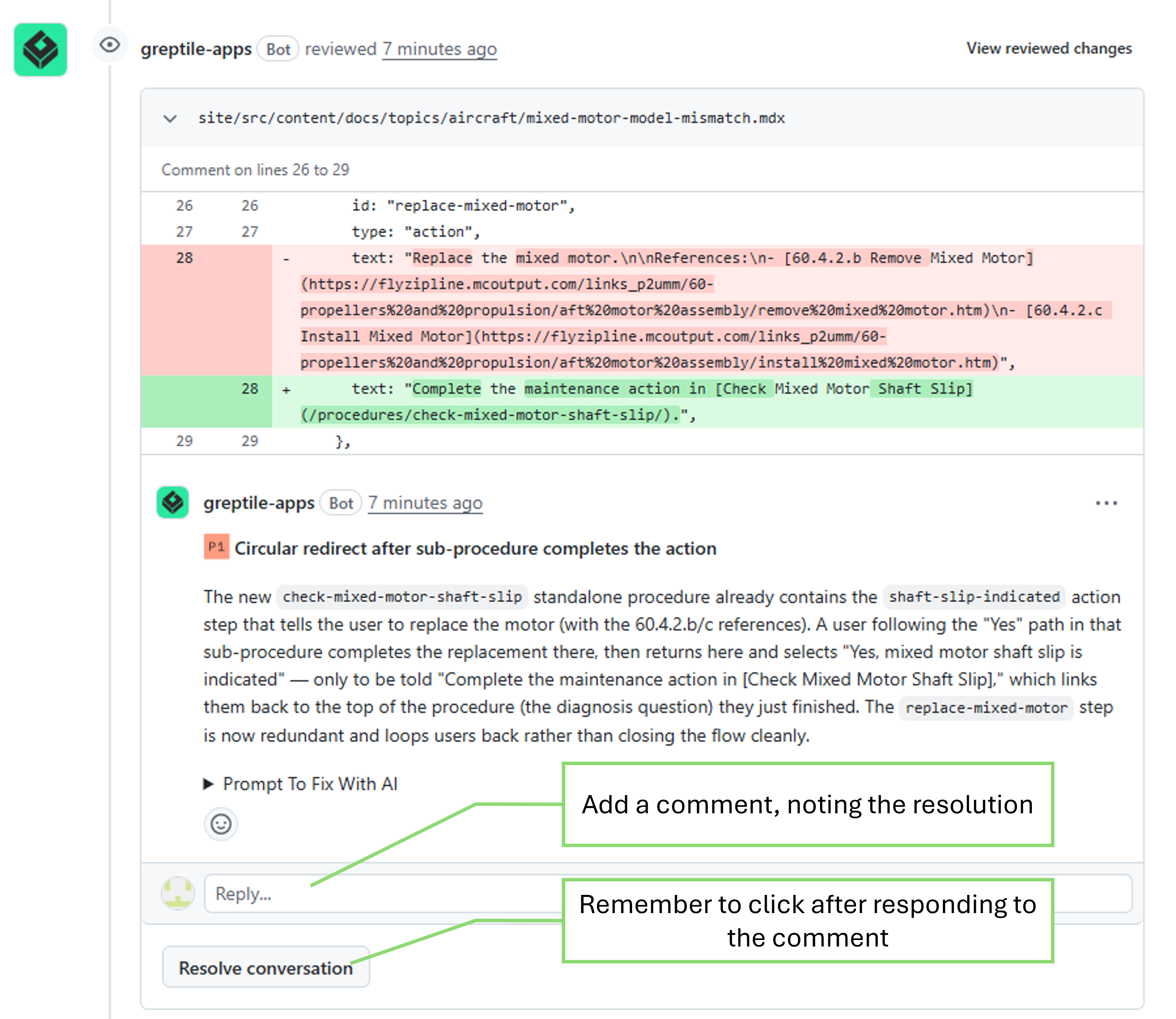
You can also use Codex when a PR check fails or an automated reviewer leaves a comment. Paste a screenshot of the failed check, error message, or Greptile comment into Codex and ask it to explain the issue, fix the repo, run checks, and push an update to the PR.
Try a prompt like:
This PR check failed. Please inspect the screenshot, explain what is wrong in plain English, fix the issue, run the appropriate checks, and push an update to this branch.Or:
This Greptile comment needs to be resolved. Please inspect the screenshot, apply the recommended fix if it makes sense, run the appropriate checks, and push an update.Pull request tips
Section titled “Pull request tips”Refresh after resolving a Greptile conversation
When Greptile leaves a comment, reply with what you changed or why no change was needed. Then click Resolve conversation on that Greptile comment.
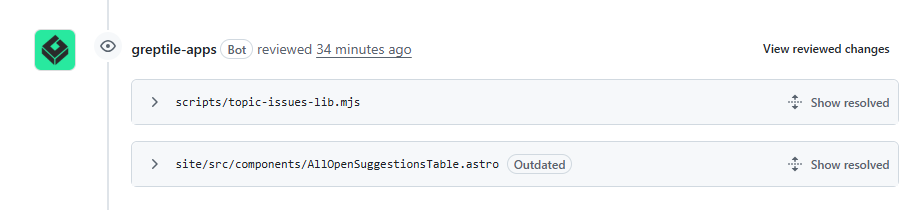
After you click Resolve conversation, GitHub may look like nothing happened. Refresh the pull-request page to confirm that the comment now shows as resolved.
Local preview tips
Section titled “Local preview tips”Restart the local preview
If the local browser preview stops updating or stops loading, restart the local preview:
-
Go back to the VS Code terminal where
npm run dev:troubleshootingis running. -
Press Ctrl+C.
-
If the terminal asks whether to terminate the batch job, type
Yand press Enter. -
Run the preview again:
Terminal window npm run dev:troubleshooting -
In your browser, open the URL shown in the terminal.
Check that you are in the site folder
If npm run dev:troubleshooting shows an error right away, confirm that the terminal is in the service_docs repository root.
On Windows, the prompt should look similar to:
PS C:\GitHub\service_docs>On Mac, the prompt should end with something similar to:
service_docsIf the prompt only shows service_docs, run:
npm run dev:troubleshootingRepo file tips
Section titled “Repo file tips”Find a repo folder on your computer
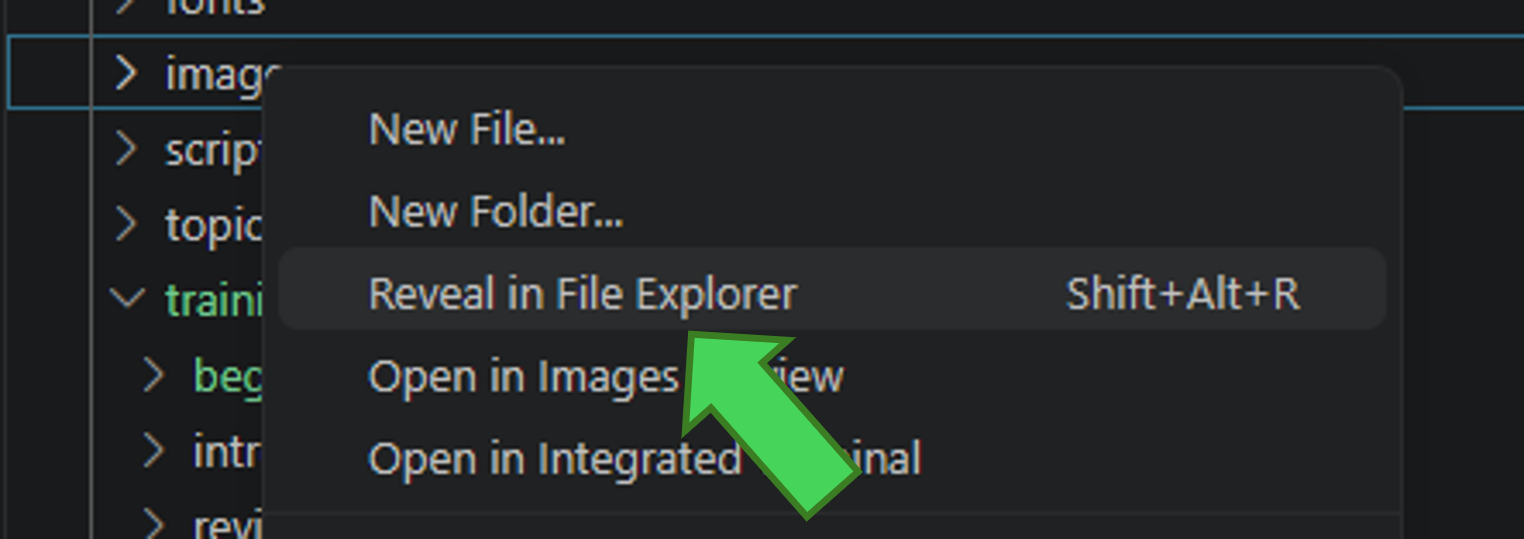
If you need to add an image or find where a file lives on your computer, use VS Code to reveal the folder in your file browser.
On Windows:
- In the VS Code Explorer, right-click a folder or file in the repo.
- Select Reveal in File Explorer.
- File Explorer opens to that location.
- Add or move the image into the folder Codex told you to use.
On Mac, use the same idea, but choose Reveal in Finder.