

Log Offloading (Aircraft/Droid)
Viewing this guide for
Background
Section titled “Background”If you are wondering where logs are, this topic provides steps to gain some insight and/or prioritize specific logs.
The procedures assume that you have SSH’d into the Aircraft/Droid. For steps, see UMM Chapter 14.
Procedure
Section titled “Procedure”graph TD
choose-log-offloading-task{"<small><b>Step 1</b></small><br/>Question: What do you need to do?"}
check-baraza-log-state{"<small><b>Step 2</b></small><br/>Question: **Is the log already on S3 but not pr..."}
dark-green-logs-complete["<small><b>Step 3</b></small><br/>Action: Logs are fully uploaded and processed..."]
white-no-files-uploaded("<small><b>Step 4</b></small><br/>Reference: No files has been uploaded. If you ha...")
light-green-partially-uploaded{"<small><b>Step 5</b></small><br/>Question: The logs are partially uploaded/proce..."}
escalate-data-platform-from-s3{{"<small><b>Step 6</b></small><br/>Escalation: Escalate to P2 Onboard Data Platform ..."}}
check-files-on-vehicle{"<small><b>Step 7</b></small><br/>Question: **Are the logs still on the vehicle a..."}
escalate-data-platform-no-files-on-vehicle{{"<small><b>Step 8</b></small><br/>Escalation: Escalate to P2 Onboard Data Platform ..."}}
fleetwrangler-retrieve-log-folders{"<small><b>Step 9</b></small><br/>Question: **FleetWrangler:** Use the **Retrieve..."}
check-log-offloader-status{"<small><b>Step 10</b></small><br/>Question: Run the following command to check th..."}
escalate-data-platform-no-fleetwrangler-logs{{"<small><b>Step 11</b></small><br/>Escalation: Escalate to P2 Onboard Data Platform ..."}}
offload-not-allowed{"<small><b>Step 12</b></small><br/>Question: The vehicle is not in the right state..."}
offload-not-allowed-idle-yes["<small><b>Step 13</b></small><br/>Action: If the vehicle is in a docked state a..."]
offload-not-allowed-idle-no["<small><b>Step 14</b></small><br/>Action: 1. Place the vehicle into an Idle sta..."]
requesting-uploadfile("<small><b>Step 15</b></small><br/>Reference: Files are being requested to be uploa...")
failure-uploading("<small><b>Step 16</b></small><br/>Reference: The file was not successfully uploade...")
no-logs-to-upload["<small><b>Step 17</b></small><br/>Action: If there are logs in /application/lo..."]
confirm-dock-routing{"<small><b>Step 18</b></small><br/>Question: **Confirm the Dock can route internet..."}
zipwan-down-restart-network{"<small><b>Step 19</b></small><br/>Question: 1. Run the following command to resta..."}
zipwan-up-restart-blob-agent["<small><b>Step 20</b></small><br/>Action: SSH into the Aircraft. Run the follow..."]
zipwan-not-up-manual-fix["<small><b>Step 21</b></small><br/>Action: Run the following command to get zip..."]
zipwan-not-down-proceed-blob-agent["<small><b>Step 22</b></small><br/>Action: Click Continue to check/restart the b..."]
check-restart-blob-agent{"<small><b>Step 23</b></small><br/>Question: **Check/Restart Blob Agent** Run: su..."}
restart-blob-agent-and-offloader["<small><b>Step 24</b></small><br/>Action: Execute the following commands: 1. s..."]
blob-agent-journalctl-errors{"<small><b>Step 25</b></small><br/>Question: In the blob_agent journalctl, are t..."}
blob-agent-errors-yes("<small><b>Step 26</b></small><br/>Reference: Follow the steps in this troubleshoot...")
repeat-log-offloader-status-check["<small><b>Step 27</b></small><br/>Action: Click Continue to check the log offlo..."]
check-log-offloader-status-again{"<small><b>Step 28</b></small><br/>Question: Run the following command to check th..."}
offload-not-allowed-again{"<small><b>Step 29</b></small><br/>Question: The vehicle is not in the right state..."}
offload-not-allowed-idle-yes-again["<small><b>Step 30</b></small><br/>Action: If the vehicle is in a docked state a..."]
offload-not-allowed-idle-no-again["<small><b>Step 31</b></small><br/>Action: 1. Place the vehicle into an Idle sta..."]
requesting-uploadfile-again("<small><b>Step 32</b></small><br/>Reference: Files are being requested to be uploa...")
failure-uploading-again("<small><b>Step 33</b></small><br/>Reference: The file was not successfully uploade...")
no-logs-to-upload-again["<small><b>Step 34</b></small><br/>Action: If there are logs in /application/lo..."]
dock-network-connection-issues("<small><b>Step 35</b></small><br/>Reference: **Dock Network Connection Issues** Fo...")
prioritizing-logs-for-offload("<small><b>Step 36</b></small><br/>Reference: **Prioritizing Logs for Offload** **T...")
retrieve-aircraft-logs-paraland("<small><b>Step 37</b></small><br/>Reference: **Retrieve Aircraft Logs After an Air...")
retrieve-droid-logs-dlb("<small><b>Step 38</b></small><br/>Reference: **Retrieve Droid Logs After a Droid l...")
retrieve-aircraft-logs-dead-battery{"<small><b>Step 39</b></small><br/>Question: **Retrieve Aircraft Logs After a Para..."}
dead-battery-gross-damage-yes{{"<small><b>Step 40</b></small><br/>Escalation: Escalate to Powertrain On Call."}}
dead-battery-gross-damage-no["<small><b>Step 41</b></small><br/>Action: 1. Disconnect the battery. 2. Power o..."]
choose-log-offloading-task -->|Diagnose missing logs| check-baraza-log-state
choose-log-offloading-task -->|Confirm Dock internet routing| confirm-dock-routing
choose-log-offloading-task -->|Check/restart Blob Agent| check-restart-blob-agent
choose-log-offloading-task -->|Dock Network Connection Issues| dock-network-connection-issues
choose-log-offloading-task -->|Prioritize logs for offload| prioritizing-logs-for-offload
choose-log-offloading-task -->|Retrieve aircraft logs afte...| retrieve-aircraft-logs-paraland
choose-log-offloading-task -->|Retrieve Droid logs after DLB| retrieve-droid-logs-dlb
choose-log-offloading-task -->|Retrieve aircraft logs afte...| retrieve-aircraft-logs-dead-battery
check-baraza-log-state -->|Dark Green| dark-green-logs-complete
check-baraza-log-state -->|White| white-no-files-uploaded
check-baraza-log-state -->|Light Green| light-green-partially-uploaded
white-no-files-uploaded --> check-files-on-vehicle
light-green-partially-uploaded -->|Yes| escalate-data-platform-from-s3
light-green-partially-uploaded -->|No| check-files-on-vehicle
check-files-on-vehicle -->|YES, the files have not bee...| fleetwrangler-retrieve-log-folders
check-files-on-vehicle -->|NO| escalate-data-platform-no-files-on-vehicle
fleetwrangler-retrieve-log-folders -->|Yes| check-log-offloader-status
fleetwrangler-retrieve-log-folders -->|No| escalate-data-platform-no-fleetwrangler-logs
check-log-offloader-status -->|Offload Not Allowed| offload-not-allowed
check-log-offloader-status -->|Requesting UploadFile| requesting-uploadfile
check-log-offloader-status -->|Failure uploading| failure-uploading
check-log-offloader-status -->|No logs to upload| no-logs-to-upload
offload-not-allowed -->|Yes| offload-not-allowed-idle-yes
offload-not-allowed -->|No| offload-not-allowed-idle-no
requesting-uploadfile --> check-restart-blob-agent
failure-uploading --> confirm-dock-routing
confirm-dock-routing -->|Yes| zipwan-down-restart-network
confirm-dock-routing -->|No| zipwan-not-down-proceed-blob-agent
zipwan-down-restart-network -->|Yes| zipwan-up-restart-blob-agent
zipwan-down-restart-network -->|No| zipwan-not-up-manual-fix
zipwan-not-down-proceed-blob-agent --> check-restart-blob-agent
check-restart-blob-agent -->|Yes| restart-blob-agent-and-offloader
check-restart-blob-agent -->|No| blob-agent-journalctl-errors
blob-agent-journalctl-errors -->|Yes| blob-agent-errors-yes
blob-agent-journalctl-errors -->|No| repeat-log-offloader-status-check
repeat-log-offloader-status-check --> check-log-offloader-status-again
check-log-offloader-status-again -->|Offload Not Allowed| offload-not-allowed-again
check-log-offloader-status-again -->|Requesting UploadFile| requesting-uploadfile-again
check-log-offloader-status-again -->|Failure uploading| failure-uploading-again
check-log-offloader-status-again -->|No logs to upload| no-logs-to-upload-again
offload-not-allowed-again -->|Yes| offload-not-allowed-idle-yes-again
offload-not-allowed-again -->|No| offload-not-allowed-idle-no-again
failure-uploading-again --> dock-network-connection-issues
retrieve-aircraft-logs-dead-battery -->|Yes| dead-battery-gross-damage-yes
retrieve-aircraft-logs-dead-battery -->|No| dead-battery-gross-damage-no
style choose-log-offloading-task fill:#dbeafe,stroke:#3b82f6,color:#1e3a5f
style check-baraza-log-state fill:#dbeafe,stroke:#3b82f6,color:#1e3a5f
style dark-green-logs-complete fill:#dcfce7,stroke:#22c55e,color:#14532d
style white-no-files-uploaded fill:#f3e8ff,stroke:#a855f7,color:#581c87
style light-green-partially-uploaded fill:#dbeafe,stroke:#3b82f6,color:#1e3a5f
style escalate-data-platform-from-s3 fill:#fef3c7,stroke:#f59e0b,color:#78350f
style check-files-on-vehicle fill:#dbeafe,stroke:#3b82f6,color:#1e3a5f
style escalate-data-platform-no-files-on-vehicle fill:#fef3c7,stroke:#f59e0b,color:#78350f
style fleetwrangler-retrieve-log-folders fill:#dbeafe,stroke:#3b82f6,color:#1e3a5f
style check-log-offloader-status fill:#dbeafe,stroke:#3b82f6,color:#1e3a5f
style escalate-data-platform-no-fleetwrangler-logs fill:#fef3c7,stroke:#f59e0b,color:#78350f
style offload-not-allowed fill:#dbeafe,stroke:#3b82f6,color:#1e3a5f
style offload-not-allowed-idle-yes fill:#dcfce7,stroke:#22c55e,color:#14532d
style offload-not-allowed-idle-no fill:#dcfce7,stroke:#22c55e,color:#14532d
style requesting-uploadfile fill:#f3e8ff,stroke:#a855f7,color:#581c87
style failure-uploading fill:#f3e8ff,stroke:#a855f7,color:#581c87
style no-logs-to-upload fill:#dcfce7,stroke:#22c55e,color:#14532d
style confirm-dock-routing fill:#dbeafe,stroke:#3b82f6,color:#1e3a5f
style zipwan-down-restart-network fill:#dbeafe,stroke:#3b82f6,color:#1e3a5f
style zipwan-up-restart-blob-agent fill:#dcfce7,stroke:#22c55e,color:#14532d
style zipwan-not-up-manual-fix fill:#dcfce7,stroke:#22c55e,color:#14532d
style zipwan-not-down-proceed-blob-agent fill:#dcfce7,stroke:#22c55e,color:#14532d
style check-restart-blob-agent fill:#dbeafe,stroke:#3b82f6,color:#1e3a5f
style restart-blob-agent-and-offloader fill:#dcfce7,stroke:#22c55e,color:#14532d
style blob-agent-journalctl-errors fill:#dbeafe,stroke:#3b82f6,color:#1e3a5f
style blob-agent-errors-yes fill:#f3e8ff,stroke:#a855f7,color:#581c87
style repeat-log-offloader-status-check fill:#dcfce7,stroke:#22c55e,color:#14532d
style check-log-offloader-status-again fill:#dbeafe,stroke:#3b82f6,color:#1e3a5f
style offload-not-allowed-again fill:#dbeafe,stroke:#3b82f6,color:#1e3a5f
style offload-not-allowed-idle-yes-again fill:#dcfce7,stroke:#22c55e,color:#14532d
style offload-not-allowed-idle-no-again fill:#dcfce7,stroke:#22c55e,color:#14532d
style requesting-uploadfile-again fill:#f3e8ff,stroke:#a855f7,color:#581c87
style failure-uploading-again fill:#f3e8ff,stroke:#a855f7,color:#581c87
style no-logs-to-upload-again fill:#dcfce7,stroke:#22c55e,color:#14532d
style dock-network-connection-issues fill:#f3e8ff,stroke:#a855f7,color:#581c87
style prioritizing-logs-for-offload fill:#f3e8ff,stroke:#a855f7,color:#581c87
style retrieve-aircraft-logs-paraland fill:#f3e8ff,stroke:#a855f7,color:#581c87
style retrieve-droid-logs-dlb fill:#f3e8ff,stroke:#a855f7,color:#581c87
style retrieve-aircraft-logs-dead-battery fill:#dbeafe,stroke:#3b82f6,color:#1e3a5f
style dead-battery-gross-damage-yes fill:#fef3c7,stroke:#f59e0b,color:#78350f
style dead-battery-gross-damage-no fill:#dcfce7,stroke:#22c55e,color:#14532d Hover or focus a block to preview it. Select the block to keep the preview open.
1 question
What do you need to do?
2 question
Is the log already on S3 but not processed yet?
Symptoms are a 20/30 second gap in plots or validators failing with time delta errors:
a. Open the baraza mission/flight page (search for it here).
b. What color are the folders? View the information below for each folder color present.
Symptoms are a 20/30 second gap in plots or validators failing with time delta errors:
Failed checks:
- [L0] periodic/100.0_percent_within_500ms/compute_b.v2v_metrics: Time delta too large
- [L0] periodic/100.0_percent_within_3s/compute_b.v2v_agent_batch_publish_metrics: Time delta too large
- [L0] periodic/100.0_percent_within_2.2s/compute_b.adsb.module_health: Time delta too large
...
a. Open the baraza mission/flight page (search for it here).
b. What color are the folders? View the information below for each folder color present.
3 action
Logs are fully uploaded and processed/available in Baraza. No further troubleshooting is needed.
4 reference
No files has been uploaded. If you have been waiting for logs for a while (~ one hour), the onboard offloading may be stuck.
5 question
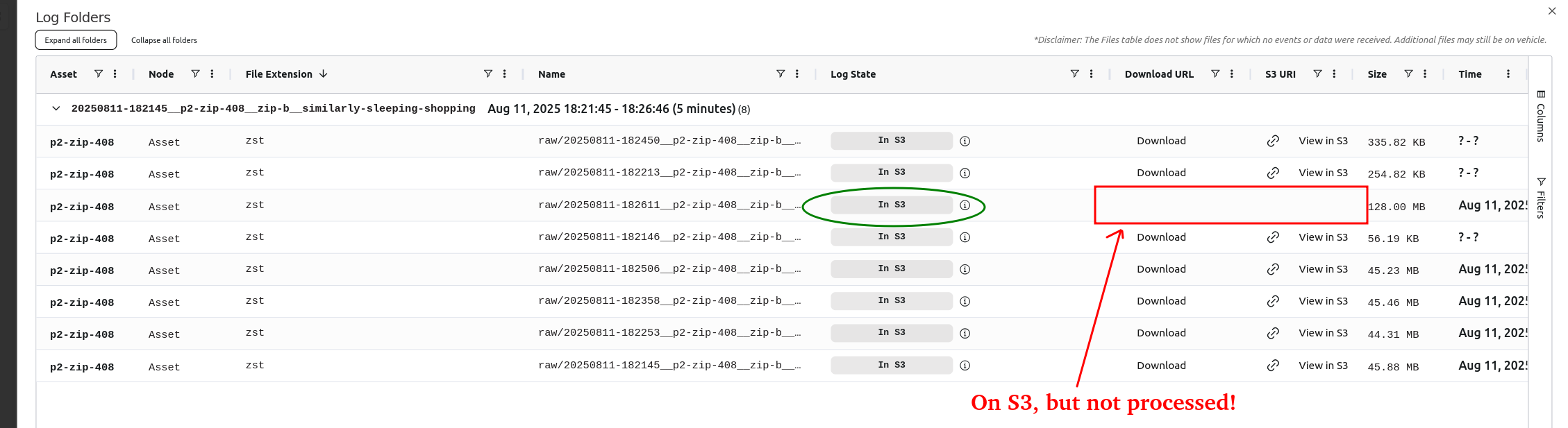
The logs are partially uploaded/processed.
1. Click on the folder bar.
Example:
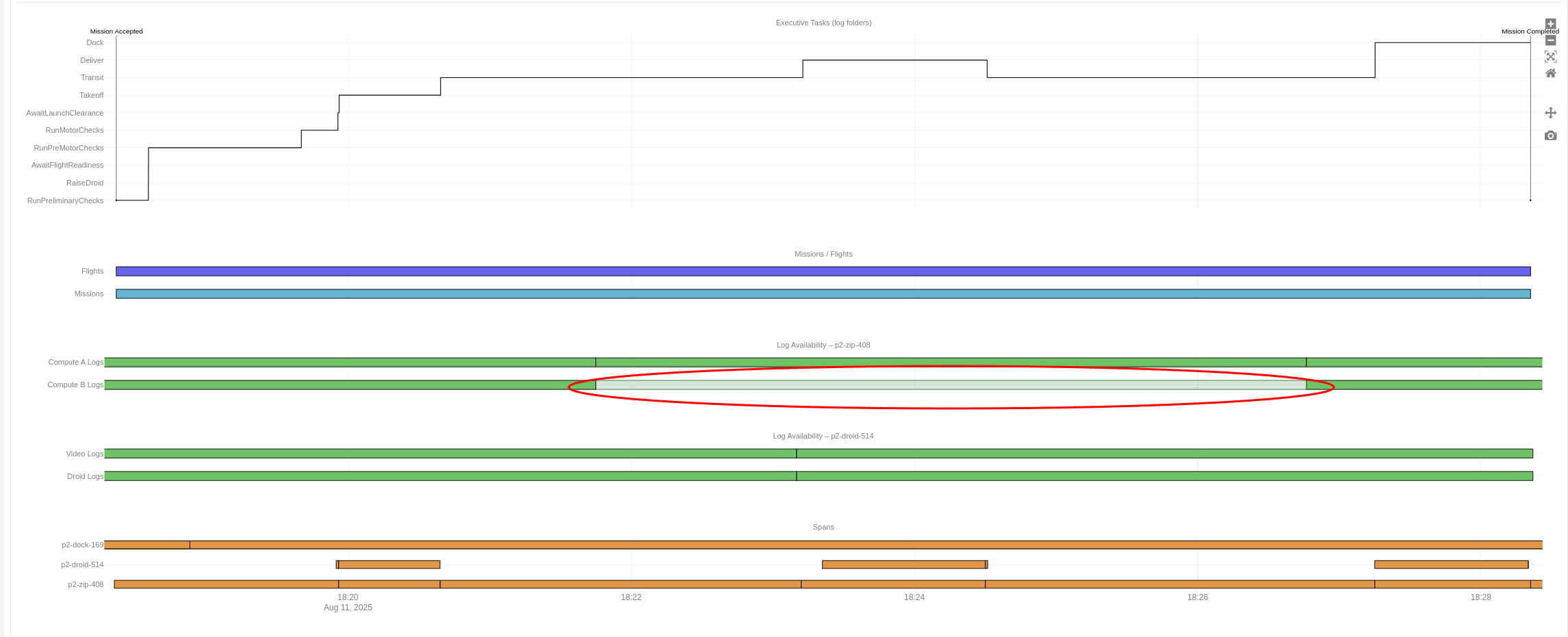
2. Is the missing file on S3?
Example:
1. Click on the folder bar.
Example:
2. Is the missing file on S3?
Example:
6 escalation
Escalate to P2 Onboard Data Platform On Call.
7 question
Are the logs still on the vehicle and not offloaded?
a. Use the
i.
b. Directory: Check the log_file_database for file status:
Common flags for the
-
- Filters by current upload state
-
- Filter by files matching the pattern
-
- Only return files created after this time
-
- Only return files before this time
c. Commands examples, Check the 'Upload State' column for the files you're looking for
i. To see if files from a specific session are still uploading:
ii. Check specific folder
iii. Get files status for a time span (Ex: around an incident)
a. Use the
log_files command to examine the database state. By default, it returns only 10 results, use --filter <NUM> to return more, egi.
log_files --filter 100 files will return 100 filesb. Directory: Check the log_file_database for file status:
Common flags for the
files subcommand:-
--upload-state <UPLOAD_STATE>- Filters by current upload state
-
--glob <GLOB>- Filter by files matching the pattern
-
--since <SINCE>- Only return files created after this time
-
--before <BEFORE>- Only return files before this time
c. Commands examples, Check the 'Upload State' column for the files you're looking for
i. To see if files from a specific session are still uploading:
TODO/correct
log_files list --limit 100 files --glob "*three-random-words*" --upload-state pending_upload
ii. Check specific folder
20260421-184808 files status (one was uploaded one is pending):$ log_files list --limit 200 files --glob '*20260421-184808*'
[WARNING] Executing command on AI:p2-zip-358: log_files list files --glob '*20260421-184808*'
2026-04-21T18:51:30.888947Z INFO Journal mode set to: wal
2026-04-21T18:51:30.935520Z INFO Found 2 files (limit: 200):
+--------+----------------------------------+----------+-------------+----------------+
| ID | File Path | Size | Synthesized | Upload State |
+--------+----------------------------------+----------+-------------+----------------+
| 752415 | /application/log/20260421-184808 | 24.79 MiB| no | pending_upload |
| 752412 | /application/log/20260421-184808 | 25.12 MiB| no | uploaded |
+--------+----------------------------------+----------+-------------+----------------+iii. Get files status for a time span (Ex: around an incident)
$ log_files list --limit 200 files \
    --since "4/21 19:00" \
--before "4/21 19:03" 8 escalation
Escalate to P2 Onboard Data Platform On Call.
9 question
FleetWrangler: Use the Retrieve Log Folders troubleshooting command. How to Use Troubleshooting Commands. Do you see the logs?
10 question
Run the following command to check the log offloader status:
Review the applicable information below for the status that you see:
sudo journalctl -fu log_offloader.serviceReview the applicable information below for the status that you see:
11 escalation
Escalate to P2 Onboard Data Platform On Call.
12 question
The vehicle is not in the right state to offload logs. Log offload is only allowed when VehicleMode =
Is the vehicle's VehicleMode
Idle.Is the vehicle's VehicleMode
Idle and we have a non-cell connection to the internet? 13 action
If the vehicle is in a docked state and on a non-cell connection and you are still seeing the Offload Not Allowed status:
1. If this is a paralanded or droid left behind zip (without a droid) then follow Retrieve Aircraft Logs After an Aircraft Paraland or a Droid left Behind.
2. Otherwise escalate to P2 Onboard Data Platform On Call.
1. If this is a paralanded or droid left behind zip (without a droid) then follow Retrieve Aircraft Logs After an Aircraft Paraland or a Droid left Behind.
2. Otherwise escalate to P2 Onboard Data Platform On Call.
14 action
1. Place the vehicle into an Idle state and on an ethernet connection.
- If it is not in a Dock, placing it into a Dock will likely resolve this.
2. Check the offloader status again.
- If it is not in a Dock, placing it into a Dock will likely resolve this.
2. Check the offloader status again.
15 reference
Files are being requested to be uploaded.
You should see status with a Got Deleted status which means that everything is working and the file was successfully uploaded. These are nominal and mean that offloading is making progress. Wait for the files to complete offloading.
If you do not see a Got Deleted status, click Continue to check the blob agent.
You should see status with a Got Deleted status which means that everything is working and the file was successfully uploaded. These are nominal and mean that offloading is making progress. Wait for the files to complete offloading.
If you do not see a Got Deleted status, click Continue to check the blob agent.
16 reference
The file was not successfully uploaded by the blob_agent.
Click Continue to confirm the Dock can route internet traffic from the Aircraft/Droid.
Click Continue to confirm the Dock can route internet traffic from the Aircraft/Droid.
17 action
If there are logs in
/application/log, check the log file database, see if there are any files pending upload (in the previous step). 18 question
Confirm the Dock can route internet traffic from the Aircraft/Droid
1. SSH into the Dock
2. Run the following command to view the state of all network interfaces:
3. Look for

1. SSH into the Dock
2. Run the following command to view the state of all network interfaces:
ip a.3. Look for
zipwan@end0 in the output. Is the interface marked as DOWN (see screenshot)? 19 question
1. Run the following command to restart the Dock's Network Config Service:
2. Run the same command you ran earlier to view all network interfaces:
3. Is
sudo systemctl restart network_config.2. Run the same command you ran earlier to view all network interfaces:
ip a.3. Is
zipwan@end0 marked as UP? 20 action
SSH into the Aircraft. Run the following command to restart the Blob Agent:
sudo systemctl restart blob_agent. Logs should start offloading. If they don't, check the Blob Agent/Dock Network Connection Issues. 21 action
Run the following command to get
If it does not resolve after 1 hour, check
zipwan@end0 back up: sudo ip link set zipwan up. Check if it succeeded with running ip a again, and if so, logs should start offloading.If it does not resolve after 1 hour, check
zipwan@end0 another time. Is it down again? This indicates flakey network connection. Follow this guide: Blob Agent/Dock Network Connection Issues. 22 action
Click Continue to check/restart the blob agent.
23 question
Check/Restart Blob Agent
Run:
Is the blob_agent in a stuck state as shown in the example below (Example bug ticket)?
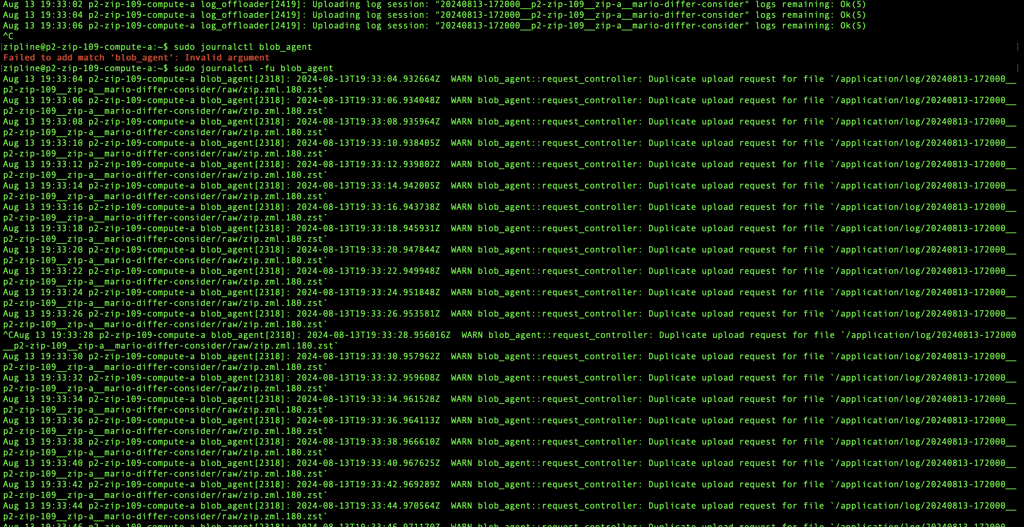
Run:
sudo journalctl -fu blob_agent.Is the blob_agent in a stuck state as shown in the example below (Example bug ticket)?
24 action
Execute the following commands:
1.
2.
1.
sudo systemctl restart blob_agent.service2.
sudo systemctl restart log_offloader.service 25 question
In the blob_agent
-
-
-
journalctl, are there any of the following errors?-
send failed because receiver is gone-
1: connection closed before message completed-
did not hear back from the cloud 26 reference
Follow the steps in this troubleshooting guide: Blob Agent/Dock Network Connection Issues.
27 action
Click Continue to check the log offloaded status again.
28 question
Run the following command to check the log offloader status:
Review the applicable information below for the status that you see:
sudo journalctl -fu log_offloader.serviceReview the applicable information below for the status that you see:
29 question
The vehicle is not in the right state to offload logs. Log offload is only allowed when VehicleMode =
Is the vehicle's VehicleMode
Idle.Is the vehicle's VehicleMode
Idle and we have a non-cell connection to the internet? 30 action
If the vehicle is in a docked state and on a non-cell connection and you are still seeing the Offload Not Allowed status:
1. If this is a paralanded or droid left behind zip (without a droid) then follow Retrieve Aircraft Logs After an Aircraft Paraland or a Droid left Behind.
2. Otherwise escalate to P2 Onboard Data Platform On Call.
1. If this is a paralanded or droid left behind zip (without a droid) then follow Retrieve Aircraft Logs After an Aircraft Paraland or a Droid left Behind.
2. Otherwise escalate to P2 Onboard Data Platform On Call.
31 action
1. Place the vehicle into an Idle state and on an ethernet connection.
- If it is not in a Dock, placing it into a Dock will likely resolve this.
2. Check the offloader status again.
- If it is not in a Dock, placing it into a Dock will likely resolve this.
2. Check the offloader status again.
32 reference
Files are being requested to be uploaded.
You should see status with a Got Deleted status which means that everything is working and the file was successfully uploaded. These are nominal and mean that offloading is making progress. Wait for the files to complete offloading.
You should see status with a Got Deleted status which means that everything is working and the file was successfully uploaded. These are nominal and mean that offloading is making progress. Wait for the files to complete offloading.
33 reference
The file was not successfully uploaded by the blob_agent.
Click Continue to check the Blob Agent/Dock Network Connection Issues.
Click Continue to check the Blob Agent/Dock Network Connection Issues.
34 action
If there are logs in
/application/log, check the log file database, see if there are any files pending upload (in the previous step). 35 reference
Dock Network Connection Issues
Follow the steps in this troubleshooting guide: Blob Agent/Dock Network Connection Issues.
Follow the steps in this troubleshooting guide: Blob Agent/Dock Network Connection Issues.
36 reference
Prioritizing Logs for Offload
This changed recently, make sure you're using the right version for the SW you're using - If you have a log_order_injector running, this is the wrong version
Log offloader uses a queue to determine which log to offload next. Groups of logs can be added to the queue through the
If specific files are desired to be pushed to the front of the queue, the binary can be run directly to do so without modifying or turning off the service.
To prioritize offloading, use the
-
-
-
Here is an example command to prioritize offloading of all raw files of one session:
Example of commands to run from the A/B/Droid SSH to prioritize 10 minutes (2025-11-17 2025-11-17 2024-11-17 19:4*) of logs on zip-387 and droid 573:
This changed recently, make sure you're using the right version for the SW you're using - If you have a log_order_injector running, this is the wrong version
Log offloader uses a queue to determine which log to offload next. Groups of logs can be added to the queue through the
log_files binaryIf specific files are desired to be pushed to the front of the queue, the binary can be run directly to do so without modifying or turning off the service.
To prioritize offloading, use the
log_files offload files command. It takes a "glob" to match which files to offload, and requires --front to place them at the top of the offload queue.-
--glob "*/raw/*" will offload all files in all raw directories-
--glob "*journalctl*" will offload all journalctl files-
--glob "*three-random-words*/raw/*" will offload all raw files in the session three-random-wordsHere is an example command to prioritize offloading of all raw files of one session:
$ log_files offload files --front --glob "wish-bizrate-bottle/raw/*"Example of commands to run from the A/B/Droid SSH to prioritize 10 minutes (2025-11-17 2025-11-17 2024-11-17 19:4*) of logs on zip-387 and droid 573:
### Zip-a
sudo /flight/bin/log_order_injection --zip-ipc unix:///flight/run/zip_ipc --asset-id p2-zip-387 --node-id zip-a --verbose order --glob "20251117-194*/*/*" --front

### Zip-b
sudo /flight/bin/log_order_injection --zip-ipc unix:///flight/run/zip_ipc --asset-id p2-zip-387 --node-id zip-b --verbose order --glob "20251117-194*/*/*" --front

### Droid
sudo /droid/bin/log_order_injection --zip-ipc unix:///droid/run/zip_ipc --asset-id p2-droid-573 --node-id droid --verbose order --glob "20251117-194*/*/*" --front
37 reference
Retrieve Aircraft Logs After an Aircraft Paraland or a Droid left Behind
After the Aircraft has paralanded/DLB, the Zip Exec is blocked in start-up task and needs to be killed to force sleep state. Since the offloader is expecting a message from Executive to know when to offload (example, not during missions), the offloader configuration must be updated to force the offload and then to restart it.
1. If possible, move the Aircraft to a maintenance Dock.
2. Power cycle the Aircraft (Power Cycle Aircraft).
3. Use a smart-cart and follow the steps below.
- Symptom: Log offload is blocked
- Steps to complete on A then B computers:
- Steps to complete on the Droid (if available)
4. If offload does not start after completing the steps, escalate to P2 Onboard Data Platform On Call.
5. After the logs are offloaded, power-down / power-cycle the Aircraft to remove the temporary offload config (Power Cycle Aircraft).
After the Aircraft has paralanded/DLB, the Zip Exec is blocked in start-up task and needs to be killed to force sleep state. Since the offloader is expecting a message from Executive to know when to offload (example, not during missions), the offloader configuration must be updated to force the offload and then to restart it.
1. If possible, move the Aircraft to a maintenance Dock.
2. Power cycle the Aircraft (Power Cycle Aircraft).
3. Use a smart-cart and follow the steps below.
- Symptom: Log offload is blocked
$ sudo journalctl -fu log_offloader
...
Aug 07 23:05:10 zip-compute-revH-SN59-a log_offloader_zip[13312]: Offload not allowed
Aug 07 23:05:14 zip-compute-revH-SN59-a log_offloader_zip[13312]: Offload not allowed
- Steps to complete on A then B computers:
# connect with ssh to A then B
sudo stop-flight

# update the offloader config to force offload
sudo sh -c "echo 'LOG_OFFLOAD_MODE=always' > /flight/config/log_offloader_options.env"
# restart the offloader and blob agent
sudo systemctl restart log_offloader blob_agent

# confirm the offload is happening
sudo journalctl -fu executive.service -u log_offloader -u blob_agent
#...
#Aug 07 23:55:23 zip-compute-revH-SN59-a blob_agent[1969]: 2025-08-07T23:55:23.767313Z INFO blob_agent::clients::http_client: Uploaded with speed ...
- Steps to complete on the Droid (if available)
# connect with ssh to Droid
sudo stop-flight

# update the offloader config to force offload
sudo sh -c "echo 'LOG_OFFLOAD_MODE=always' > /droid/config/log_offloader_options.env"

# restart the offloader
sudo systemctl restart log_offloader

# confirm the offload is happening
sudo journalctl -fu executive.service -u log_offloader -u blob_agent
# ...
# Aug 07 23:55:23 droid-compute-revH-SN59-a blob_agent[1969]: 2025-08-07T23:55:23.767313Z INFO blob_agent::clients::http_client: Uploaded with speed ...
4. If offload does not start after completing the steps, escalate to P2 Onboard Data Platform On Call.
5. After the logs are offloaded, power-down / power-cycle the Aircraft to remove the temporary offload config (Power Cycle Aircraft).
38 reference
Retrieve Droid Logs After a Droid left Behind
1. Put the droid on one of the selected droid log offloading NEOs
2. Check the status of log offloading with
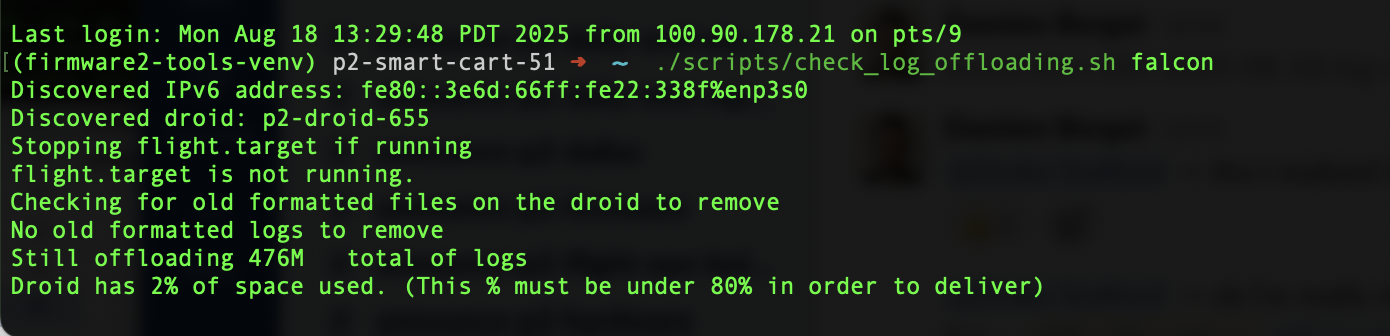
3. Once there are no more logs to offload, it will say so and the checking script will return.

4. If log offloading is not responding like the above screenshot, please use this Troubleshooting article: Droid Log Offloading Troubleshooting.
1. Put the droid on one of the selected droid log offloading NEOs
2. Check the status of log offloading with
check_log_offloading.sh <password> remember to replace <password> with the actual password. - it will monitor for 10 min unless you ctrl+C out of the check.3. Once there are no more logs to offload, it will say so and the checking script will return.
4. If log offloading is not responding like the above screenshot, please use this Troubleshooting article: Droid Log Offloading Troubleshooting.
39 question
Retrieve Aircraft Logs After a Paraland and the Battery is dead / at 0% SOC
1. Inspect the battery to distro bolted joint for any gross signs of damage.
2. Inspect the battery for any gross signs of damage. Are there any signs of gross damage?
Examples of gross damage:
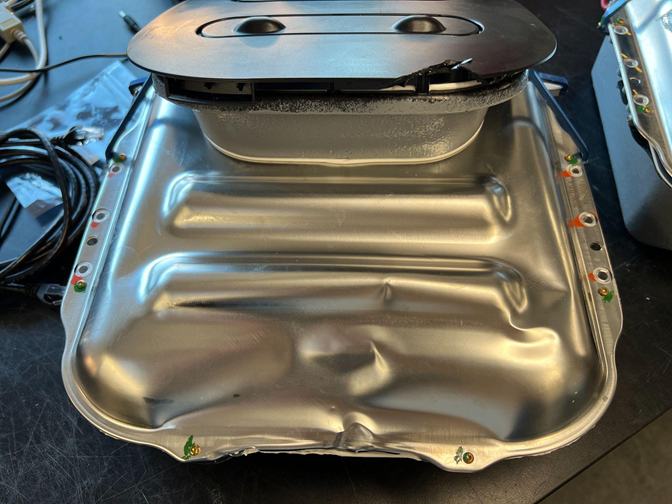
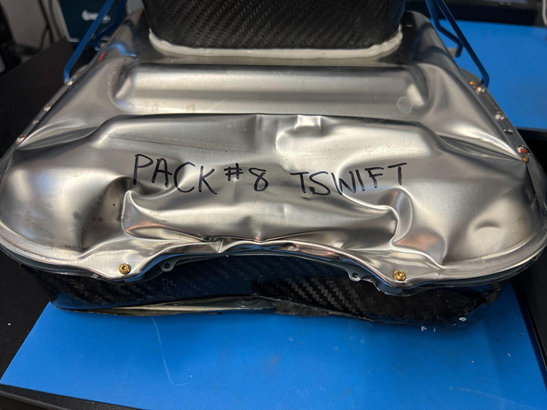
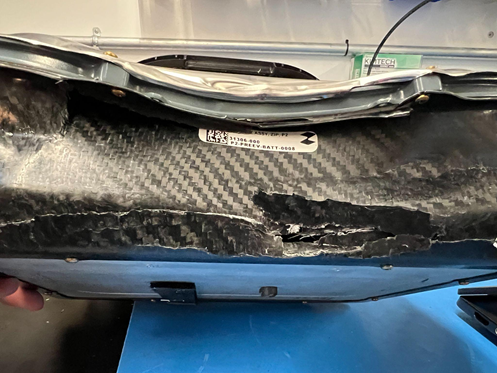
1. Inspect the battery to distro bolted joint for any gross signs of damage.
2. Inspect the battery for any gross signs of damage. Are there any signs of gross damage?
Examples of gross damage:
- Chipped flap
- Lid bent significantly with sealing compromised
- Lid is widely bent with significant cracking in the tub
40 escalation
Escalate to Powertrain On Call.
41 action
1. Disconnect the battery.
2. Power on the Aircraft using an external power supply set to 50V; 2A as the voltage and current limits.
2. Power on the Aircraft using an external power supply set to 50V; 2A as the voltage and current limits.
Resolution note
This plaintext block is ready to paste into the Resolution Note field on the ZERP issue you're working. The permalink below gives engineering review access to the full step-by-step timeline including any back-navigation; share it if the case needs a deeper look.
Permalink:
Session is too large to fit in a URL. Use Download session JSON to share the timeline out-of-band.
Did this guide help you get unblocked?