

Bay Safe -- How they work and how to use them
What Are Bay Safe Intents?
Bay Safe Intents are a safety mechanism used before approaching a bay. The primary bay is the bay selected for work. The Fleet Wrangler Bay Safe Map automatically applies the preset configuration and identifies the required transit-safe bays for access to the primary bay. Dock Bay Safe requests include a standard 6-meter radius in addition to the configured transit-safe zones. Truckzilla docks default to a radius large enough to cover the whole site.
Before entering, verify that the primary bay displays Safe To Approach in green and all required transit-safe bays display Transit Safe in blue. Only approach the primary bay for work. Transit-safe bays are safe to walk under and near, but aircraft may operate in close proximity.
System Integration: When a bay is “safe’d,” it is marked as not usable in mission planning tools (e.g., FleetWrangler, Site Health Dashboard) and cannot be leased by delivery or test apps.
Why Use Bay Safe Intents?
- Protect Personnel: Provides a verified Safe To Approach status for the primary bay before personnel approach it for work.
- Provide Transit Access: Automatically identifies and safes required transit bays so personnel can access the primary bay. Aircraft may still operate near transit-safe bays.
- Required for All Approaches: Must be used before approaching any dock, or maintenance bay (including MX docks, lowered towers, or scissor lifts). Zipping points may also be safed to prevent usage of that zipping point until maintenance is complete.
Fleet Wrangler Bay Safe Map
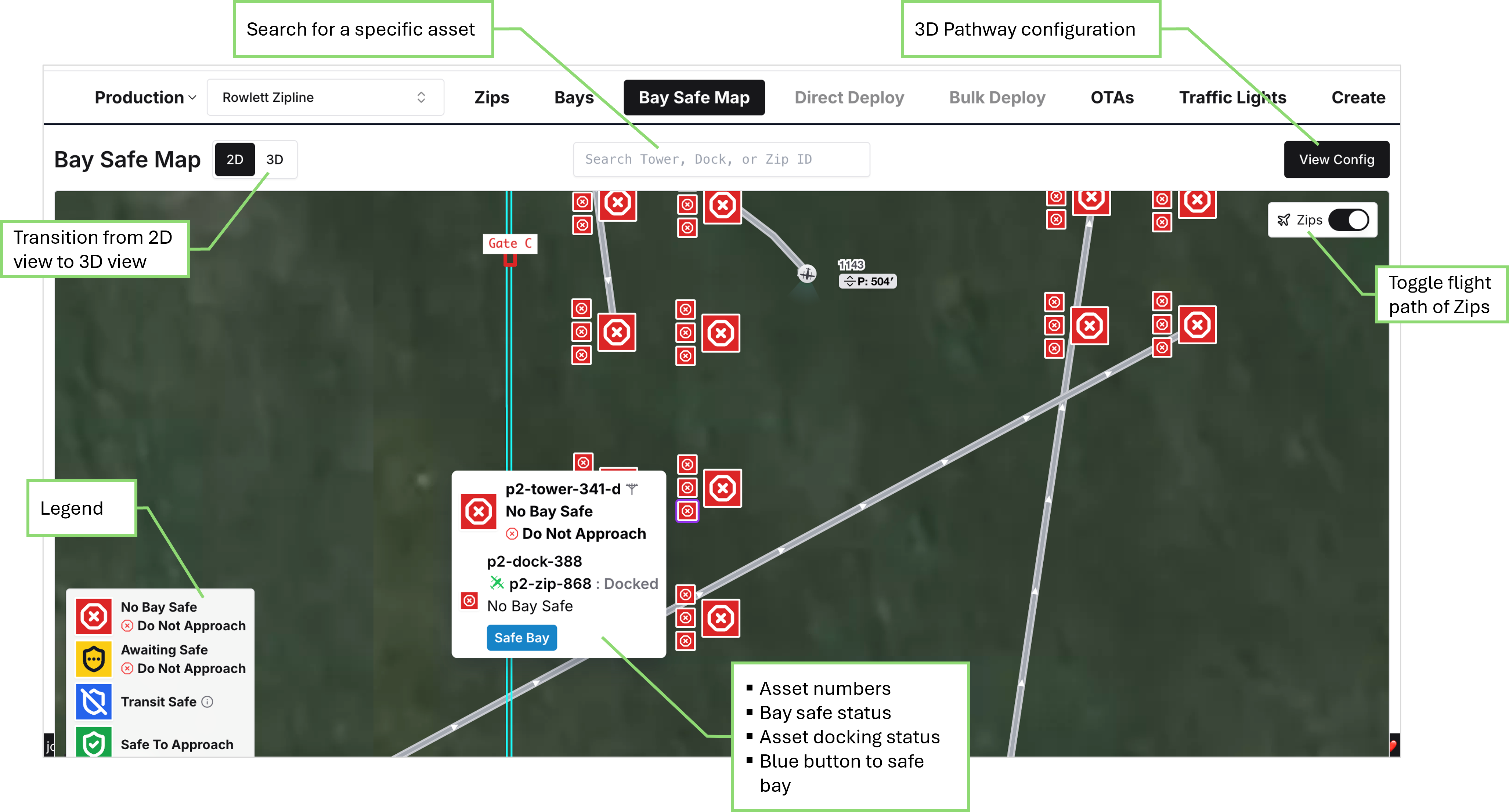
Enable and release dock Bay Safe through the Fleet Wrangler Bay Safe Map, accessed directly or from a ZERP Site Visit Plan.
The annotated map below shows asset search, the 2D/3D view controls, View Config, the Zip flight-path toggle, the legend, and the selected bay’s asset IDs, docking status, and Safe Bay button.
Bay Safe Status Symbols

Troubleshooting & Tips
- Active Safe Intents: If a bay is covered by a Safe Intent, it will show as “Not usable” in mission tools. Hover over the shield badge for details.
- Already Safe’d? Check the current status of the selected primary bay and required transit bays in the Fleet Wrangler Bay Safe Map before entering.
- Blocked Actions: Attempting to reposition or redock into a bay with an active Safe Intent will result in an error.
- Leasing: Zips in safe’d bays cannot be leased by other apps (e.g., Fleet Tester, Delivery Apps).
- FleetWrangler will allow you to lease the zip but you’ll be unable to send missions or run diagnostic checks with motors for a zip in a safed bay
- Safety First: For dock Bay Safe, verify the primary bay is green Safe To Approach and all required transit bays are blue Transit Safe in the current map view. Do not enter while any required bay is yellow Awaiting Safe.
Important Reminders
- Verify before entering: Apply Bay Safe and confirm that the primary bay is green Safe To Approach and all required transit-safe bays are blue Transit Safe in the current map view. Do not enter while any required bay is yellow Awaiting Safe.
- Only approach the primary bay for work. Transit-safe bays provide access to the primary bay.
- Clear the flight line before releasing Bay Safe: Complete the work, fully exit, and confirm that nobody remains in the flight line. Verify the release in the map before considering it complete.
- If you encounter issues or have any questions, flag them in #wg-bay-safe-flow or consult your site lead.
graph TD
    select-the-topic-you-need["<small><b>Step 1</b></small><br/>Action: Select the topic you need."]
    unable-to-safe-a-bay("<small><b>Step 2</b></small><br/>Reference: See Unable to Safe a Bay/topics/si...")
    open-bay-safe-map["<small><b>Step 3</b></small><br/>Action: **Open the Fleet Wrangler Bay Safe Ma..."]
    select-target-bay["<small><b>Step 4</b></small><br/>Action: **Select the target bay** Select the ..."]
    how-to-safe-a-zipping-point["<small><b>Step 5</b></small><br/>Action: **Zipping points** - To safe a zippin..."]
    request-bay-safe["<small><b>Step 6</b></small><br/>Action: **Request Bay Safe** With the correct..."]
    confirm-safe-to-approach["<small><b>Step 7</b></small><br/>Action: **Verify before entering** After conf..."]
    did-bay-show-safe-to-approach["<small><b>Step 8</b></small><br/>Action: Before approaching another target bay..."]
    inbound-zip-landed-but-not-safe["<small><b>Step 9</b></small><br/>Action: This should only happen if the zip ha..."]
    visually-confirm-zip-has-landed["<small><b>Step 10</b></small><br/>Action: Visually confirm that the zip has landed"]
    go-into-fleetwrangler-confirm-no-missio["<small><b>Step 11</b></small><br/>Action: Go into FleetWrangler and confirm tha..."]
    turn-off-the-zip["<small><b>Step 12</b></small><br/>Action: Turn off the zip if it is not already..."]
    delete-the-zip-in-fleetwrangler["<small><b>Step 13</b></small><br/>Action: Delete the zip in FleetWrangler"]
    confirm-bay-safe-to-approach-qr-flow["<small><b>Step 14</b></small><br/>Action: In the Fleet Wrangler Bay Safe Map, c..."]
    release-safe-intent["<small><b>Step 15</b></small><br/>Action: **Clear the flight line** Complete th..."]
    remove-bay-safe["<small><b>Step 16</b></small><br/>Action: **Remove Bay Safe** 1. In the Fleet W..."]
    verify-bay-safe-release["<small><b>Step 17</b></small><br/>Action: **Verify the release** Confirm that B..."]
    controllers-choose-action{"<small><b>Step 18</b></small><br/>Question: Controllers use the Fleet Wrangler Ba..."}
    controllers-safe-a-bay["<small><b>Step 19</b></small><br/>Action: Open the relevant site in the Fleet W..."]
    controllers-release-a-bay-safe["<small><b>Step 20</b></small><br/>Action: Confirm that nobody remains in the fl..."]
    select-the-topic-you-need -->|How to Safe a Bay Before Ap...| open-bay-safe-map
    select-the-topic-you-need -->|How to Safe a Zipping Point| how-to-safe-a-zipping-point
    select-the-topic-you-need -->|How to Release a Safe Intent| release-safe-intent
    select-the-topic-you-need -->|Bay Safe For Controllers| controllers-choose-action
    select-the-topic-you-need -->|What to do if the 'shown in...| inbound-zip-landed-but-not-safe
    select-the-topic-you-need -->|Unable to Safe a Bay| unable-to-safe-a-bay
    open-bay-safe-map --> select-target-bay
    select-target-bay --> request-bay-safe
    request-bay-safe --> confirm-safe-to-approach
    confirm-safe-to-approach --> did-bay-show-safe-to-approach
    inbound-zip-landed-but-not-safe --> visually-confirm-zip-has-landed
    visually-confirm-zip-has-landed --> go-into-fleetwrangler-confirm-no-missio
    go-into-fleetwrangler-confirm-no-missio --> turn-off-the-zip
    turn-off-the-zip --> delete-the-zip-in-fleetwrangler
    delete-the-zip-in-fleetwrangler --> confirm-bay-safe-to-approach-qr-flow
    release-safe-intent --> remove-bay-safe
    remove-bay-safe --> verify-bay-safe-release
    controllers-choose-action -->|Safe a bay| controllers-safe-a-bay
    controllers-choose-action -->|Release a bay safe| controllers-release-a-bay-safe
    style select-the-topic-you-need fill:#dcfce7,stroke:#22c55e,color:#14532d
    style unable-to-safe-a-bay fill:#f3e8ff,stroke:#a855f7,color:#581c87
    style open-bay-safe-map fill:#dcfce7,stroke:#22c55e,color:#14532d
    style select-target-bay fill:#dcfce7,stroke:#22c55e,color:#14532d
    style how-to-safe-a-zipping-point fill:#dcfce7,stroke:#22c55e,color:#14532d
    style request-bay-safe fill:#dcfce7,stroke:#22c55e,color:#14532d
    style confirm-safe-to-approach fill:#dcfce7,stroke:#22c55e,color:#14532d
    style did-bay-show-safe-to-approach fill:#dcfce7,stroke:#22c55e,color:#14532d
    style inbound-zip-landed-but-not-safe fill:#dcfce7,stroke:#22c55e,color:#14532d
    style visually-confirm-zip-has-landed fill:#dcfce7,stroke:#22c55e,color:#14532d
    style go-into-fleetwrangler-confirm-no-missio fill:#dcfce7,stroke:#22c55e,color:#14532d
    style turn-off-the-zip fill:#dcfce7,stroke:#22c55e,color:#14532d
    style delete-the-zip-in-fleetwrangler fill:#dcfce7,stroke:#22c55e,color:#14532d
    style confirm-bay-safe-to-approach-qr-flow fill:#dcfce7,stroke:#22c55e,color:#14532d
    style release-safe-intent fill:#dcfce7,stroke:#22c55e,color:#14532d
    style remove-bay-safe fill:#dcfce7,stroke:#22c55e,color:#14532d
    style verify-bay-safe-release fill:#dcfce7,stroke:#22c55e,color:#14532d
    style controllers-choose-action fill:#dbeafe,stroke:#3b82f6,color:#1e3a5f
    style controllers-safe-a-bay fill:#dcfce7,stroke:#22c55e,color:#14532d
    style controllers-release-a-bay-safe fill:#dcfce7,stroke:#22c55e,color:#14532d
Hover or focus a block to preview it. Select the block to keep the preview open.
Use either method:
- ZERP Site Visit Plan: Open the plan, expand the attached aircraft or dock, and select the automatically generated Bay Safe link. Fleet Wrangler opens with the associated bay selected.
- Fleet Wrangler directly: Open the relevant site and select Bay Safe Map.
Select the bay you want to approach on the map, or use the search bar to find a tower, dock, or Zip ID. Confirm that the selected site and highlighted bay are correct.
- To safe a zipping point, scan the safe zipping point QR code (these can also be found in the pinned drive folders in
#wg-bay-safe-flow) and follow the same process as for docks.- Instead of asking for a tower & dock number, the flow just requires you enter the ZP number.
With the correct target bay selected, click Safe Bay. The map previews the additional bays included by the preset Bay Safe configuration.
Review the target bay and additional coverage, then click Confirm.
The request preview does not represent current safety status. Do not enter based on preview colors.
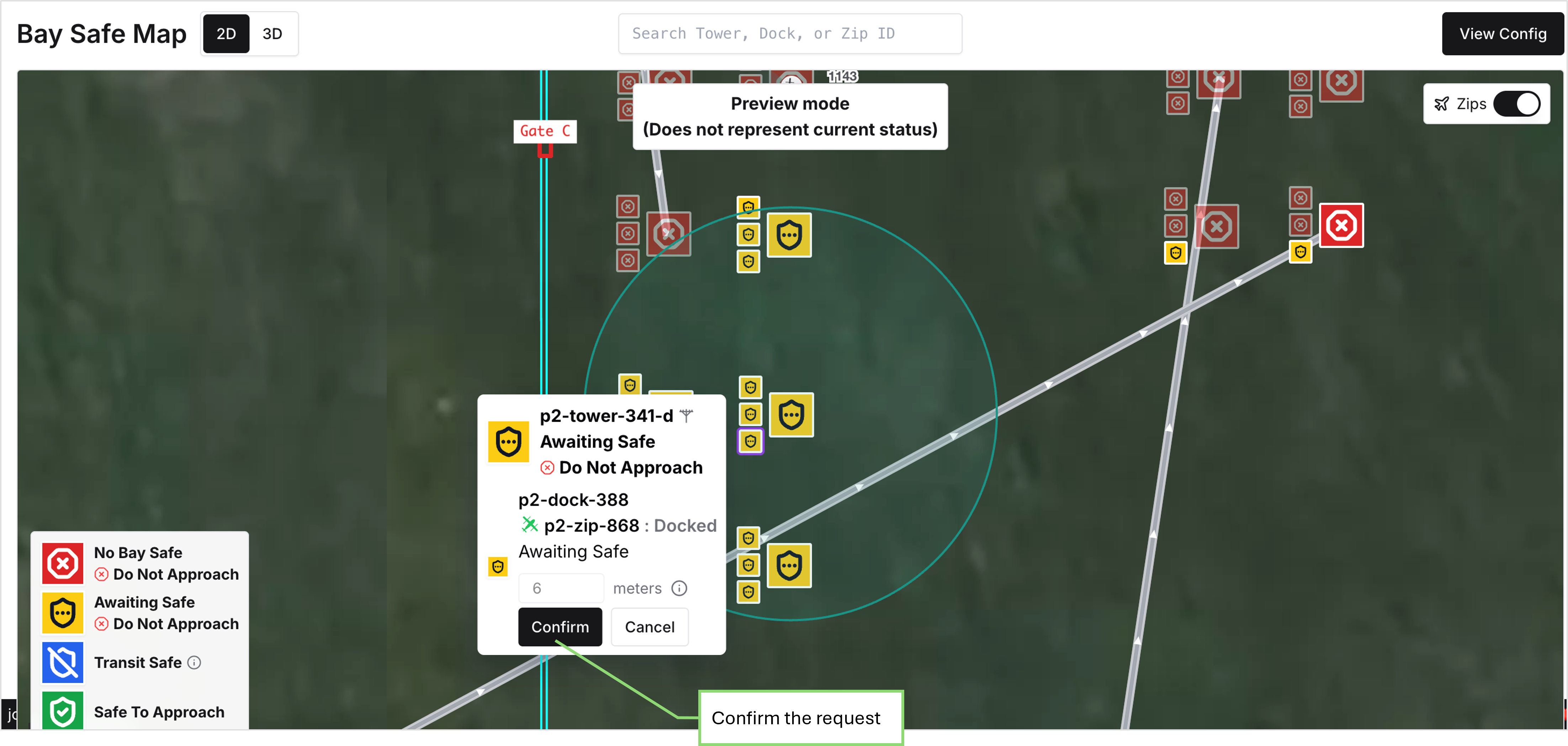
After confirmation, affected bays show Awaiting Safe - Do Not Approach in yellow while the request is being applied.
Do not enter the flight line while any required bay is yellow.
Wait until:
- The primary bay shows Safe To Approach in green.
- All required transit bays show Transit Safe in blue.
Only approach the primary bay for work. Transit-safe bays are safe to walk under and near; aircraft may still operate in close proximity. Where a configured gate is shown on the 3D map, enter through the highlighted gate.
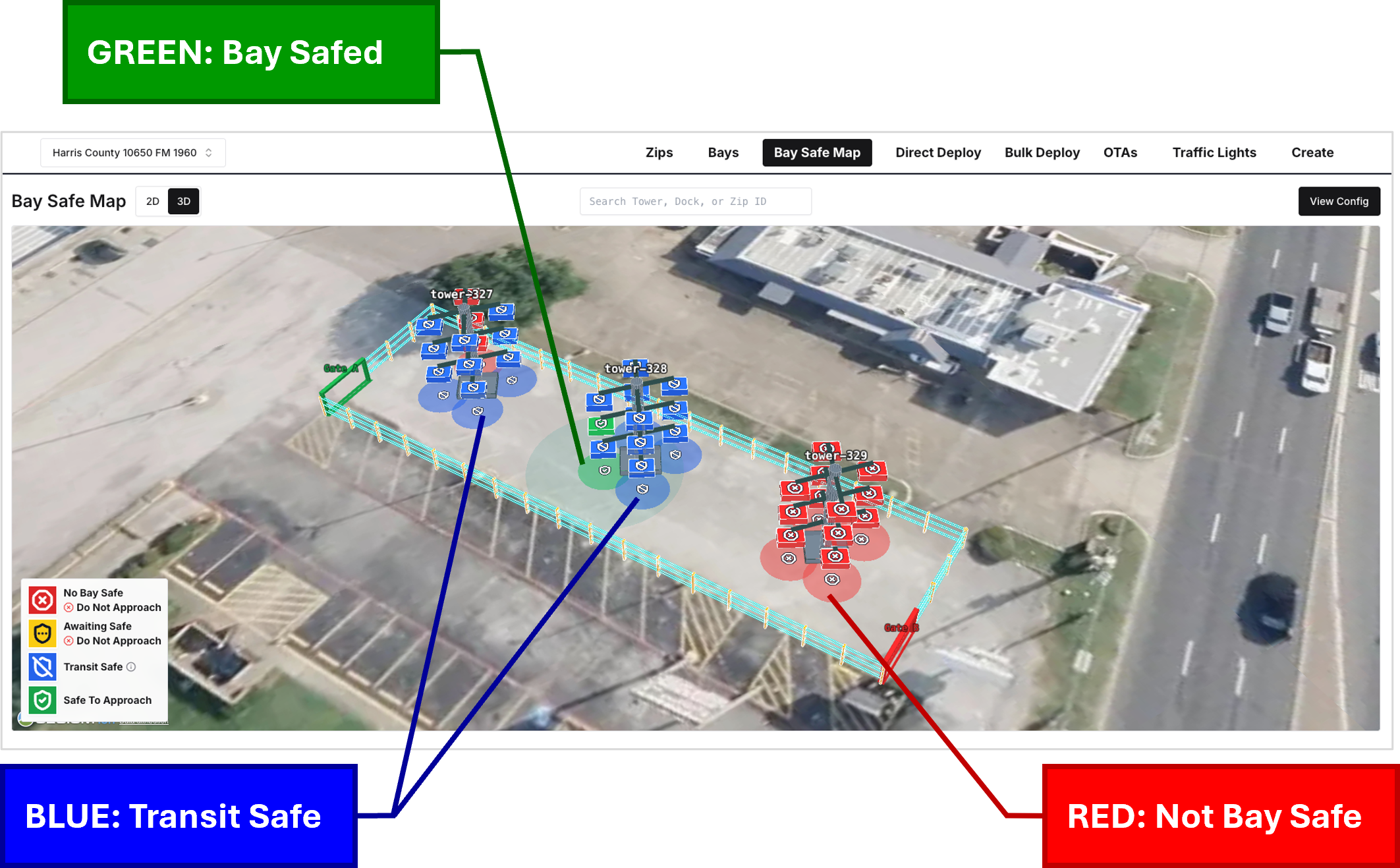
If the request does not reach the required statuses, see Unable to Safe a Bay.
If this is not one of those cases, flag the issue to the
#ask-asw-delivery team.This can be seen on the zip details page.
Confirm that the zip is physically off and that it shows offline in FleetWrangler.
If unsure, repeat the Bay Safe request and verification process in the map. Do not enter the flight line while any required bay displays Awaiting Safe in yellow.
Complete the work, fully exit the flight line, and check that nobody is still operating in the flight line before releasing Bay Safe.
1. In the Fleet Wrangler Bay Safe Map, select the primary bay with Bay Safe enabled.
2. Click Release Safe.
3. Confirm that nobody remains in the flight line.
4. Select the clearance-confirmation checkbox, then click Confirm.
Confirm that Bay Safe has been removed and all bays associated with the request return to red No Bay Safe - Do Not Approach. Do not consider the release complete until the map confirms the expected statuses.
If you requested Bay Safe for multiple primary bays, repeat the release and verification steps for each separately requested primary bay after the flight line is clear.
If the release does not complete as expected, request support in #wg-bay-safe-flow.
Do not authorize entry while any required bay is yellow Awaiting Safe. Verify that the primary bay is green Safe To Approach and all required transit bays are blue Transit Safe before anyone enters.
In the Fleet Wrangler Bay Safe Map, select the primary bay and click Release Safe. Select the clearance-confirmation checkbox and click Confirm. Verify that all bays associated with the request return to red No Bay Safe - Do Not Approach before considering the release complete.
If you requested Bay Safe for multiple primary bays, repeat the release and verification steps for each separately requested primary bay after the flight line is clear.
Resolution note
This plaintext block is ready to paste into the Resolution Note field on the ZERP issue you're working. The permalink below gives engineering review access to the full step-by-step timeline including any back-navigation; share it if the case needs a deeper look.
Permalink:
Session is too large to fit in a URL. Use Download session JSON to share the timeline out-of-band.
Did this guide help you get unblocked?
Open suggestions
There are no open suggestions.